When browsing your Windows system files or troubleshooting activation issues, you may come across a process called slui.exe. For many users, the name looks mysterious and even suspicious. Is it safe? Is it malware pretending to be a system file? Or is it something essential to Windows itself? Understanding what slui.exe does can help you better manage your PC and quickly identify potential security risks.
TL;DR: slui.exe is a legitimate Microsoft process used for Windows activation and license validation. It helps users activate Windows online or by phone and ensures the operating system is genuine. The file is safe when located in the proper System32 folder, but malware can sometimes disguise itself using the same name. If you experience issues, simple troubleshooting steps like checking file location, running system scans, or reactivating Windows usually resolve the problem.
What Exactly Is slui.exe?
The file slui.exe stands for Software Licensing User Interface. It is a built-in Windows component responsible for handling the activation process of your operating system. Whenever you enter a product key, reactivate Windows after hardware changes, or confirm licensing status, slui.exe is working behind the scenes.
Its main responsibilities include:
- Launching the Windows activation wizard
- Verifying product keys
- Connecting to Microsoft servers for license validation
- Handling phone-based activation
- Displaying activation status messages
This executable is an essential part of modern Windows versions, including Windows 10 and Windows 11. Without it, proper activation and licensing workflows would not function correctly.

Where Is slui.exe Located?
The legitimate slui.exe file is located in the following directory:
C:\Windows\System32\slui.exe
The System32 folder contains critical Windows operating system files. If slui.exe is found in this directory, it is almost certainly safe and legitimate.
However, if you find slui.exe in a different location, such as:
- C:\Users\[YourName]\AppData\
- C:\ProgramData\
- Temporary folders
- Unknown subfolders
you should investigate further, as malware sometimes disguises itself using the names of legitimate system files.
Is slui.exe Safe?
Yes, slui.exe is safe—as long as it is the genuine Microsoft file stored in the System32 directory.
Like many system processes, it can occasionally raise suspicion because:
- It may briefly appear in Task Manager.
- It connects to the internet during activation.
- Its name is not immediately recognizable.
Cybercriminals sometimes exploit this uncertainty by naming malicious files “slui.exe” to avoid detection. This tactic relies on users assuming the file is legitimate.
How to Verify It’s Legitimate
You can confirm whether your slui.exe file is authentic by following these steps:
- Open Task Manager.
- Find slui.exe in the Processes tab (if running).
- Right-click it and select Open file location.
- Verify that it is located in C:\Windows\System32.
- Right-click the file, choose Properties, and check the Digital Signatures tab for Microsoft Corporation.
If anything looks suspicious, run a full antivirus scan immediately.
When Does slui.exe Run?
Unlike many background services, slui.exe does not constantly run. It launches only when needed. Common scenarios include:
- Entering a new Windows product key
- Reactivating Windows after replacing major hardware (like a motherboard)
- Confirming activation status
- Using command-line activation commands
For example, if you press Windows + R and type:
slui 3
Windows will prompt you to enter a product key.
Similarly, entering:
slui 4
opens the phone activation interface.

Common Issues with slui.exe
Although slui.exe is typically stable, users may occasionally encounter problems. The most common include:
1. slui.exe Not Found
This can happen if:
- System files are corrupted
- Malware removed or modified the file
- A faulty Windows update occurred
2. Activation Errors
You might see error codes such as:
- 0xC004F050 – Invalid product key
- 0xC004C003 – Blocked activation key
- 0x803F7001 – No valid digital license found
These errors are usually not caused by slui.exe itself but by licensing mismatches.
3. Suspicious CPU or Memory Usage
The genuine slui.exe consumes minimal resources. If you notice unusually high CPU or memory usage:
- The file could be malicious.
- Another process might be impersonating slui.exe.
How to Troubleshoot slui.exe Problems
If something seems wrong, follow these steps to resolve potential issues.
Step 1: Run System File Checker
Corrupted system files are a frequent cause of Windows issues. To repair them:
- Open Command Prompt as Administrator.
- Type sfc /scannow.
- Press Enter and wait for the scan to finish.
This command checks and restores essential system files, including slui.exe.
Step 2: Run DISM Tool
If SFC doesn’t fix the issue, try:
DISM /Online /Cleanup-Image /RestoreHealth
This command repairs the Windows image itself.
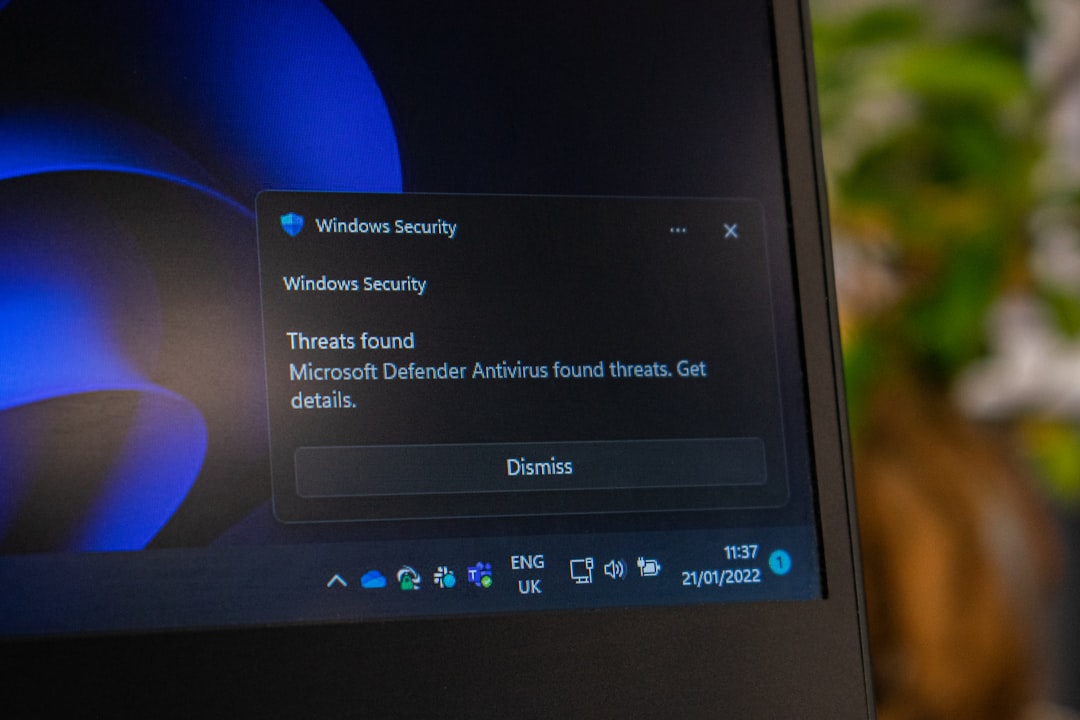
Step 3: Perform a Malware Scan
Use:
- Microsoft Defender Offline Scan
- A reputable third-party antivirus tool
This ensures that a malicious version of slui.exe is not running.
Step 4: Check Activation Settings
Go to:
Settings → System → Activation
This section shows:
- Windows edition
- Activation status
- Digital license details
If your device is already activated, there is typically no need to run slui.exe manually.
Step 5: Reactivate Windows
If you recently changed hardware, Windows may require reactivation. You can:
- Sign in with your Microsoft account linked to the license.
- Use the Activation Troubleshooter.
- Enter your product key again using slui 3.
Can You Disable or Delete slui.exe?
No, you should not delete or disable slui.exe.
It is a protected system file. Removing it may:
- Break activation functionality
- Cause Windows errors
- Trigger system instability
If your Windows installation is properly activated, slui.exe will rarely appear. There is no performance benefit to removing it.
slui.exe and Windows Licensing Explained
To understand slui.exe fully, it helps to know how Windows licensing works.
Modern versions of Windows use:
- Digital Licenses (linked to hardware or Microsoft account)
- Retail Product Keys
- OEM Keys embedded in firmware
- Volume Licensing for businesses
slui.exe acts as the user-facing interface that bridges your device with Microsoft’s licensing servers. While background services handle verification, slui.exe presents prompts and collects input.
In short, it’s the “front desk” of Windows activation.
Differences Between slui.exe and Other Licensing Tools
Windows uses multiple activation-related tools:
- slui.exe – Graphical user interface for activation
- slmgr.vbs – Command-line licensing management script
- License Manager Service – Background validation service
Advanced users and IT administrators often use slmgr.vbs for scripted or enterprise activation tasks, while everyday users interact with slui.exe.
When Should You Be Concerned?
You should investigate slui.exe if:
- It runs constantly without activation activity.
- It appears outside the System32 folder.
- It consumes excessive system resources.
- Your security software flags it.
Otherwise, it’s simply a normal and necessary part of Windows.
Final Thoughts
Although the name slui.exe may look cryptic, it plays a straightforward and important role in Windows: ensuring your operating system is properly activated and genuine. When located in the correct system folder and digitally signed by Microsoft, it is completely safe.
Like many legitimate system files, it can be mimicked by malicious software. But by checking its location, verifying its digital signature, and running proper scans when needed, you can quickly confirm whether your system is secure.
In most cases, slui.exe operates quietly in the background—appearing only when activation is required. Far from being a threat, it’s actually one of the mechanisms that protects users from counterfeit software and keeps the Windows ecosystem licensed and secure.
Understanding system processes like slui.exe empowers you to distinguish between normal operations and potential security risks—making you a more confident and informed Windows user.