So, you’ve got a shiny Chromebook and you’re wondering how to watch good old broadcast TV on it. You don’t want to miss local news, sports, or your favorite primetime shows. Good news! There are fun and easy ways to get those channels streaming straight to your Chromebook—all without needing a traditional TV setup.
TL;DR (Too Long; Didn’t Read)
You can stream broadcast TV on a Chromebook using free apps, TV tuner devices, and websites with live local channels. Services like Pluto TV and the Locast alternative get you started with zero cost. You’ll need a good internet connection, and maybe a small antenna if you go the hardware route. No cables or satellite dish required—just plug in, click, and watch!
Option 1: Use Free Streaming Services with Live TV
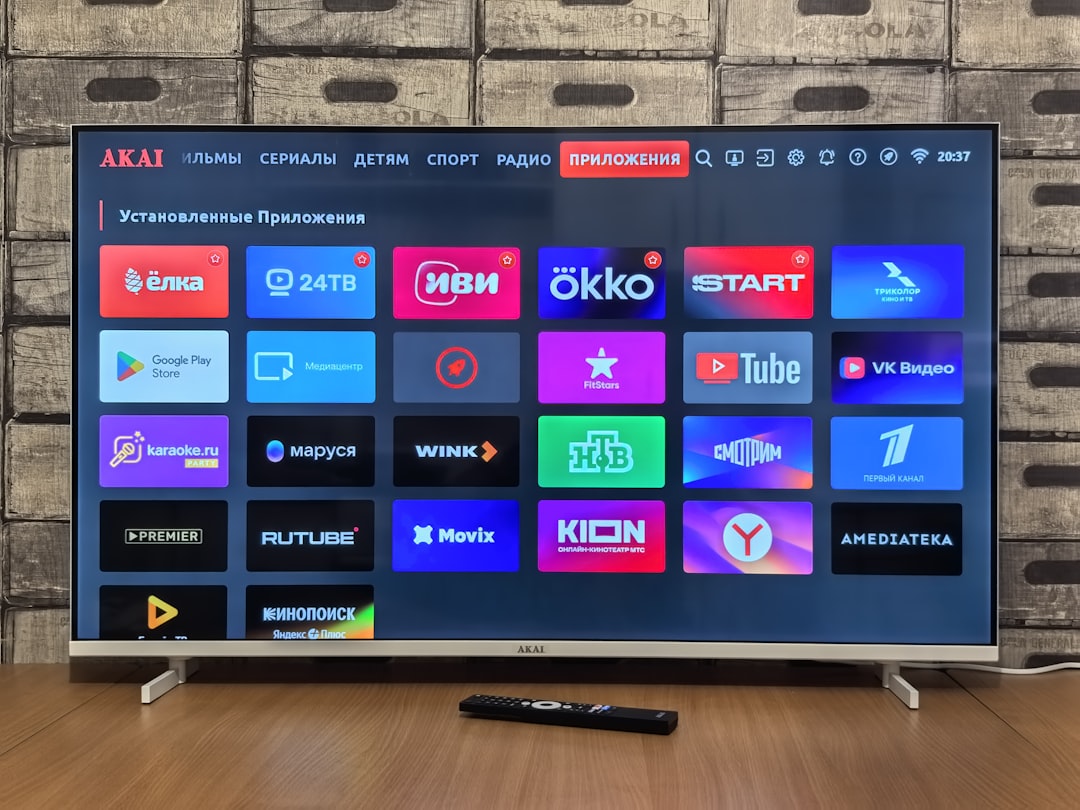
Some awesome websites and apps offer live TV for free! These services stream content that includes news, sports, and more. Here’s a quick look at your best options:
- Pluto TV – Tons of free channels. It has some local news options too.
- Tubi – Not live, but great on-demand content. Good for when the channels don’t matter.
- NewsOn – Features live newscasts from local stations across the U.S.
- PBS.org – Watch PBS live or on-demand. It’s free and educational too!
These services work directly in your browser. Just visit the websites, no download needed. Use Chrome browser for best results. Most even let you go full screen!
Option 2: Use a Digital TV Tuner with an Antenna
If you’re a channel surfer and want true over-the-air (OTA) local channels, you’ll love this option. You’ll need:
- A USB or network TV tuner device
- An antenna (indoor or outdoor)
The most popular devices are:
- HDHomeRun by SiliconDust – Connects to your home network and streams TV wirelessly.
- AverMedia or Hauppauge USB tuners – Plug directly into your Chromebook (you may need a USB-C adapter).
Once it’s connected, use apps like VLC Player or web-based tools from the device’s software to start streaming channels live.
Tip: Make sure your Chromebook supports the software from the tuner company. Many now offer web interfaces that run on Chrome just fine.
Option 3: Use a Streaming TV Provider with Local Channels
If you don’t mind spending a little, you can use paid live TV streaming services. These often include your favorite broadcast networks like CBS, NBC, ABC, and FOX.
- YouTube TV – Reliable and easy. Offers live local channels in many locations.
- Hulu + Live TV – Includes both live and on-demand shows. Great if you already use Hulu.
- Sling TV with AirTV – Sling doesn’t offer local channels directly, but with AirTV and an antenna, you can stream locals to your Sling app.
These services have apps that work in the Chrome browser. No special setup needed—just log in and start watching!
Image not found in postmetaOption 4: Streaming via Mobile Apps and Casting
Have a smartphone or tablet? You can watch live broadcast TV on mobile apps and cast it to your Chromebook using Google Chrome’s cast feature.
Try these apps:
- Local Now – News and weather from your area for free.
- Network apps like NBC, CBS, ABC – These let you stream live in many markets if you log in with a TV provider.
- Paramount+ – Offers live CBS streaming and on-demand content.
To cast to your Chromebook, both your phone and Chromebook must be on the same Wi-Fi network. Then use Chrome’s built-in casting feature to mirror your screen.
Wi-Fi and Chrome Settings
It’s important to have a strong internet connection. Streaming live TV takes data and bandwidth.
Here’s how to make sure your Chromebook is ready:
- Connect to fast Wi-Fi (at least 5 Mbps for SD, 10+ Mbps for HD)
- Keep Chrome browser updated
- Close other tabs or apps that use internet
Can You Record Broadcast TV on a Chromebook?
Yes, but only with the right setup. Some digital tuners like HDHomeRun offer DVR features—either built-in or using the cloud. You often have to pay a small monthly fee for DVR use.
If you want to go DIY:
- Install Linux on your Chromebook (it’s easy now with newer versions of Chrome OS)
- Use Linux apps like TVHeadend or Kodi for recording
This option is more advanced, but also more fun if you love tech tinkering!
Pros and Cons of Each Option
| Option | Pros | Cons |
|---|---|---|
| Free Streaming Services | Easy, no hardware needed | Limited local content |
| TV Tuner + Antenna | True local channels, one-time cost | Setup needed, hardware cost |
| Paid Streaming Services | High quality, all major networks | Monthly cost |
| Mobile Casting | Use what you already have | Not always reliable |
Final Thoughts
Streaming broadcast TV to your Chromebook opens up a world of flexible viewing. Whether you want totally free, or you’re okay paying a bit for convenience, there’s an option for you. Don’t let that big screen go to waste!
Try out a few methods and see what works best. Remember—TV has come a long way, and your Chromebook is more powerful than it looks. Happy streaming!