Getting started with your Elgato Stream Deck? You’re in for a treat! The new On-Screen Display (OSD) feature adds a visual pop to your streaming and productivity routines. It makes your commands clearer and more fun. Let’s walk through how to set it up — no stress, no jargon.
TL;DR
The new Elgato Stream Deck On-Screen Display (OSD) lets you see feedback from your key presses directly on your screen. You activate it from the Stream Deck software. Customize how it looks and what it does. It’s visual, it’s helpful, and it’s totally cool in action.
What is the Stream Deck On-Screen Display (OSD)?
The On-Screen Display is like a visual whisper from your Stream Deck. Press a button, and boom — something pops up on your monitor to confirm what you did.
- Change scenes in OBS? OSD shows you.
- Trigger a sound alert? It’s highlighted.
- Switch profiles? OSD says it loud (but visually).
This feature is especially great if you’re using hotkeys and macros often. No more guessing if the button did the thing. You’ll see confirmation right where you’re looking — on your screen!
What You’ll Need
Before we jump in, let’s make sure you’ve got what you need:
- Stream Deck hardware (Mini, MK.2, XL… any should work).
- Stream Deck software updated to the latest version.
- A Windows or Mac computer.
Good? Great. Let’s dive into setup.
Step 1: Update Your Software
First things first: update your Stream Deck software. You won’t see the On-Screen Display if you’re using an older version.
- Open the Stream Deck app.
- Click the gear icon at the top right corner.
- Select Check for Updates.
- If there’s an update available, install it.
Once it’s up to date, restart the app. You’re now officially OSD-ready.
Step 2: Turn On the OSD Feature
The OSD isn’t always on by default. But don’t worry — turning it on is easy.
- In the Stream Deck software, click the Settings gear icon.
- Go to the General tab.
- Find the checkbox that says Enable On-Screen Display.
- Check that box. Boom. It’s alive!
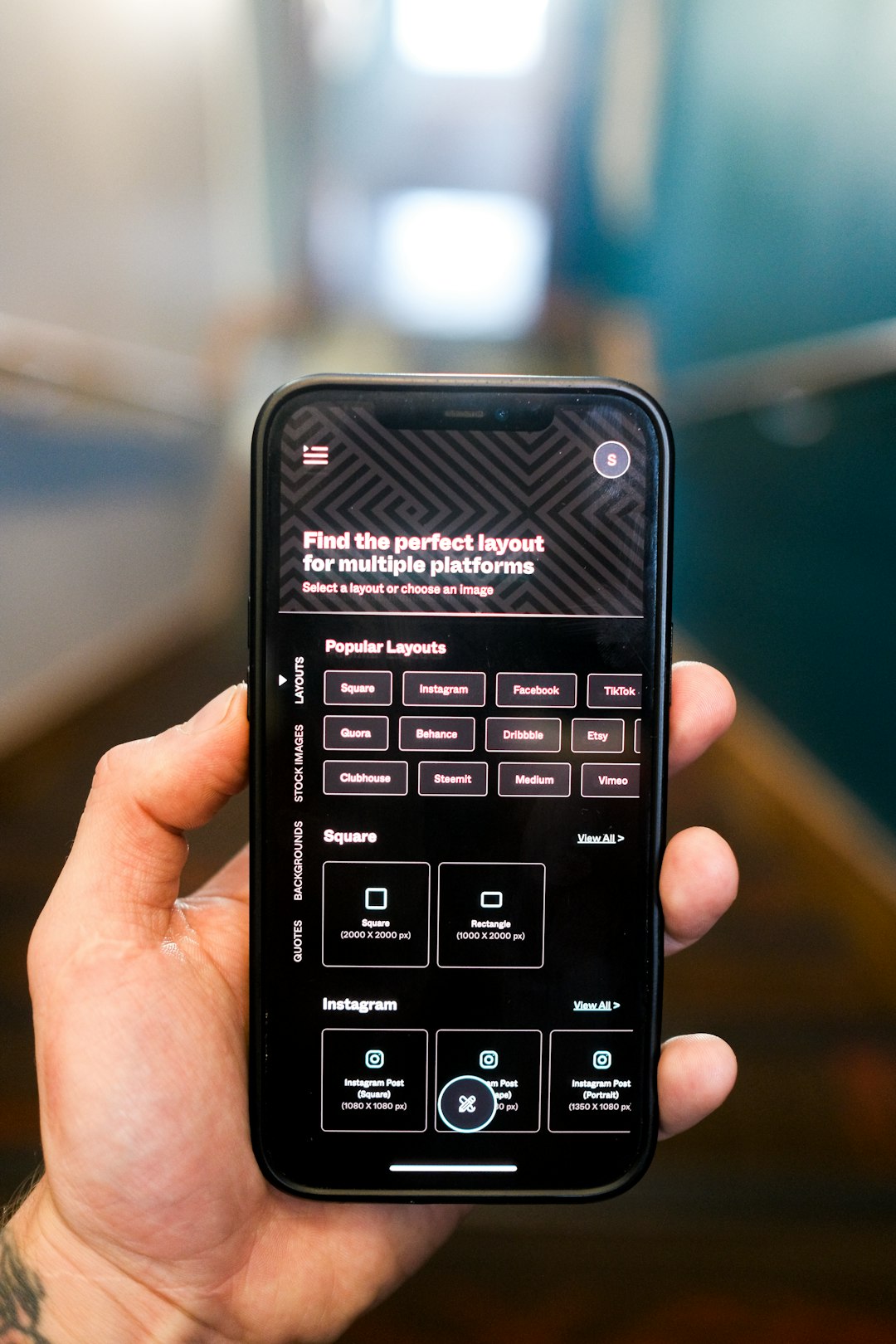
You should now start seeing little popups or overlays when you press buttons. These messages show what’s happening with your Stream Deck actions — live!
Step 3: Customize How It Looks
The default look is nice… but maybe you want to spice it up.
To dive into customization:
- In the Stream Deck software, go back to Settings.
- Go to the tab or section labeled On-Screen Display.
- You’ll see options for:
- Font – Choose how the text looks.
- Color – Match your brand or vibe.
- Position – Top-left? Bottom-right? Choose where it pops up.
- Duration – How long it stays on screen.
Make it pretty. Make it yours. This is your visual feedback, after all!
Step 4: Assign OSD to Specific Actions
You can also control which buttons trigger an OSD. Maybe you only want alerts for key scene switches or soundboards — not everything.
To adjust:
- Click on the button you want to edit.
- In the right-hand panel, scroll down to the OSD Settings.
- You’ll see toggles like:
- Show OSD – Turn on/off per-button feedback.
- Custom Message – Add your own text (“Scene 2 Activated!”).
This is awesome for adding a personal message every time you do something cool on stream.
Step 5: Test It Out!
You’re set up. Now comes the fun part — trying it out!
Press a button you’ve configured. Look at your screen. Watch the overlay appear. Feel the magic.

If it’s not showing up, check again that you enabled the OSD in settings. Also make sure your buttons have Show OSD toggled ON.
Cool Things You Can Do With OSD
Need some ideas for how to use the On-Screen Display? Here are a few fun ones:
- Show your active scene name during transitions.
- Display countdowns for breaks or events.
- Trigger funny text popups when playing sound effects.
- Use OSD to confirm your mic was muted or unmuted.
It adds a layer of communication — not just with your audience but with yourself too. No looking across your streaming setup.
Troubleshooting Tips
If you don’t see anything on screen, don’t panic. Here are a few fixes to check:
- Restart the Stream Deck software.
- Recheck the OSD option is enabled in General settings.
- Update your operating system — sometimes it helps with screen overlay permissions.
- Close conflicting apps (like screen capture software that blocks overlays).
Still stuck? Elgato has a support page just for this feature.
Get Creative With It
Remember: the OSD is not just a tool — it’s a canvas. Add flair for your viewers. Add reminders for you. Popups don’t have to be boring alerts — they can be moments that make your stream sing.
You can even combine it with plugins. Some third-party plugins offer custom animations or extended visual effects. Look in the Stream Deck Plugin Store in the software. New stuff is added all the time!
Final Thoughts
The On-Screen Display is one of those features that makes you wonder how you ever lived without it. It’s quick to set up, super easy to customize, and adds instant polish to everything you do.
Whether you’re live-streaming to thousands or just automating work tasks, visual feedback helps everything run smoother. Plus, it just looks cool.
Go on — bring your screen to life, one keypress at a time.