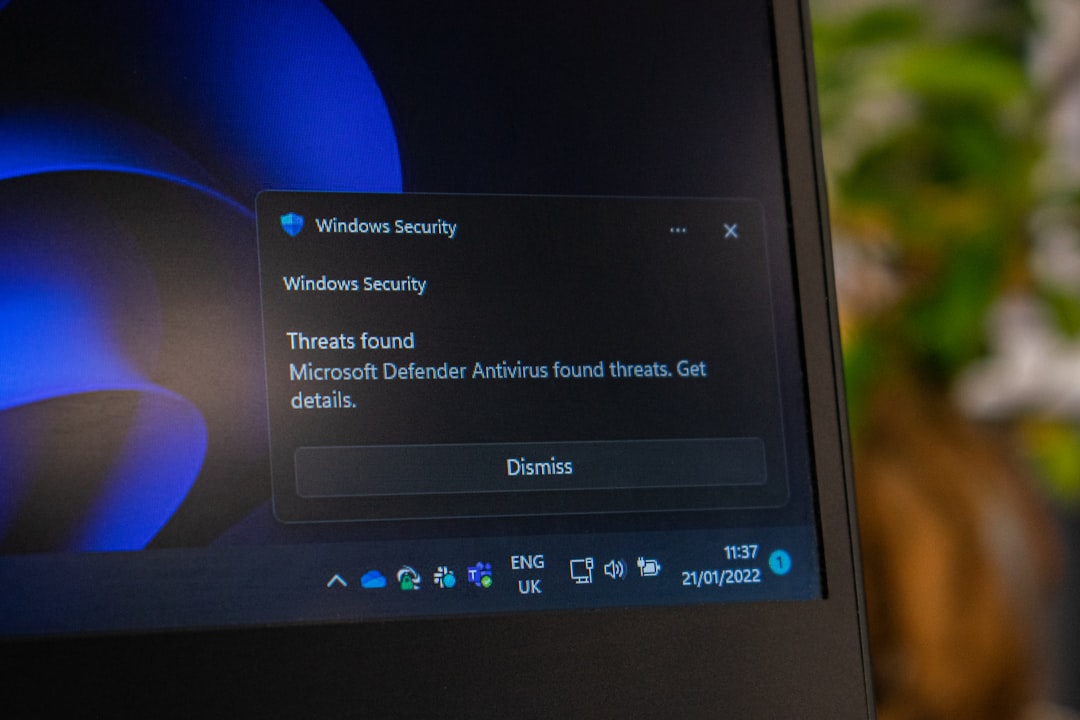
Discovering a threat like Trojan:Win32/Vigorf.A on your Windows 10 or Windows 11 system can be alarming. This malware detection is typically associated with backdoor trojans, unauthorized access activity, and potentially unwanted data manipulation. Acting quickly—and correctly—is critical to prevent further compromise of your files, passwords, and sensitive information. Below is a comprehensive, step-by-step guide designed to help you remove Trojan:Win32/Vigorf.A safely and restore your computer’s security.
TL;DR: Trojan:Win32/Vigorf.A is a serious malware threat that can allow unauthorized access to your system. Disconnect from the internet immediately, run a full scan using Microsoft Defender or a reputable antivirus program, and remove any detected threats. Follow up by using a secondary malware scanner, deleting temporary files, and resetting passwords. Keeping Windows fully updated and enabling real-time protection helps prevent reinfection.
What Is Trojan:Win32/Vigorf.A?
Trojan:Win32/Vigorf.A is a detection name used by Microsoft Defender to identify a malicious trojan program. Trojans disguise themselves as legitimate files or applications but execute harmful actions in the background. These actions may include:
- Opening a backdoor for remote attackers
- Stealing personal information or login credentials
- Downloading additional malware
- Disabling security protections
- Modifying system settings without permission
Unlike viruses, trojans do not self-replicate, but they can be just as dangerous because they often operate silently.
Step 1: Disconnect from the Internet
Before attempting removal, disconnect your computer from the internet. This step prevents the trojan from communicating with its command-and-control server and stops further data transmission.
- Turn off Wi-Fi
- Unplug Ethernet cables
- Disable Bluetooth
This containment step limits potential damage while you clean the system.
Step 2: Run Microsoft Defender Offline Scan
Microsoft Defender is built into Windows 10 and Windows 11 and is often capable of removing Trojan:Win32/Vigorf.A.
How to Run an Offline Scan:
- Click Start → Settings
- Select Privacy & Security
- Click Windows Security
- Choose Virus & threat protection
- Select Scan options
- Choose Microsoft Defender Offline scan
- Click Scan now
The system will restart and scan outside the normal Windows environment, making it harder for malware to hide.
Step 3: Use a Secondary Malware Scanner
Even if Microsoft Defender removes the threat, it is wise to verify with a second reputable security tool. Running multiple layered scans increases detection accuracy.
Recommended Malware Removal Tools Comparison
| Tool | Best For | Real-Time Protection | Free Version | Ease of Use |
|---|---|---|---|---|
| Malwarebytes | Secondary cleanup scans | Premium only | Yes | Very Easy |
| ESET Online Scanner | Deep cloud-based scanning | No | Yes | Easy |
| Bitdefender Antivirus | Advanced trojan removal | Yes | Limited trial | Very Easy |
Important: Download these tools only from their official websites to avoid reinfection.
Step 4: Boot Into Safe Mode (If Necessary)
If the trojan persists or blocks antivirus software, boot into Safe Mode.
How to Enter Safe Mode in Windows 10/11:
- Press Windows + R
- Type msconfig and press Enter
- Click the Boot tab
- Check Safe boot
- Select Network
- Restart your PC
Once in Safe Mode, rerun your antivirus scans. Many trojans fail to load properly in this restricted environment, making removal easier.
Step 5: Remove Suspicious Programs Manually
After automated scans, check installed applications:
- Go to Control Panel → Programs and Features
- Look for unfamiliar or recently installed programs
- Uninstall suspicious entries
If you are unsure about a program, research it before removal. Removing legitimate system components can cause issues.
Step 6: Delete Temporary Files
Malware often hides in temporary folders. Clearing them can remove remnants.
- Press Windows + R
- Type %temp% and press Enter
- Delete all files in the folder
- Use Disk Cleanup to remove additional temporary files
This helps ensure no leftover malicious scripts remain.
Step 7: Check Startup Programs
Trojans commonly configure themselves to run at startup.
- Press Ctrl + Shift + Esc to open Task Manager
- Click the Startup tab
- Disable unknown or suspicious entries
Research unfamiliar entries before disabling critical system programs.
Step 8: Reset Your Passwords
If Trojan:Win32/Vigorf.A was active on your system, assume your credentials may have been compromised.
Immediately reset:
- Email passwords
- Banking passwords
- Social media logins
- Microsoft account credentials
Enable multi-factor authentication (MFA) wherever possible.
Step 9: Update Windows and Drivers
Outdated systems are more vulnerable to exploitation. After removal:
- Go to Settings → Windows Update
- Click Check for updates
- Install all security patches
Keeping your OS updated closes vulnerabilities that malware exploits.
Step 10: Monitor for Reinfection
Over the next several days:
- Watch for unusual CPU spikes
- Look for unknown background processes
- Check for disabled security features
- Run periodic full system scans
If the trojan returns, consider a full system reset.
When to Perform a Full Windows Reset
If removal attempts repeatedly fail, the safest option may be resetting Windows.
Reset This PC:
- Go to Settings → System → Recovery
- Select Reset this PC
- Choose Remove everything (most secure option)
Back up important files before proceeding. For severe infections, a clean installation using a bootable USB drive is the most thorough solution.
How Trojan:Win32/Vigorf.A Infects Systems
Understanding infection vectors can help prevent recurrence. Common methods include:
- Downloading cracked software or key generators
- Opening malicious email attachments
- Clicking deceptive pop-up ads
- Installing fake browser updates
- Using torrents from untrusted sources
Practicing cautious browsing habits dramatically lowers infection risk.
How to Prevent Future Infections
Preventative security is far easier than malware removal. Follow these best practices:
- Keep real-time protection enabled
- Use a reputable antivirus with web protection
- Enable firewall protection
- Install software only from official sources
- Backup data regularly
- Avoid pirated content
Layered protection is essential in modern cybersecurity environments.
Final Thoughts
Trojan:Win32/Vigorf.A is not a harmless alert—it signals the presence of a potentially dangerous backdoor threat. Immediate isolation, thorough scanning, password resets, and system updates are critical to restoring your system’s integrity. While Microsoft Defender is often capable of removing this malware, verifying with a secondary tool ensures no hidden remnants remain.
If removal efforts fail or suspicious behavior continues, do not hesitate to perform a complete Windows reset. In cybersecurity, caution is always preferable to compromise. By following the structured steps above and maintaining strong security hygiene, you can remove Trojan:Win32/Vigorf.A safely and significantly reduce the risk of future infections.