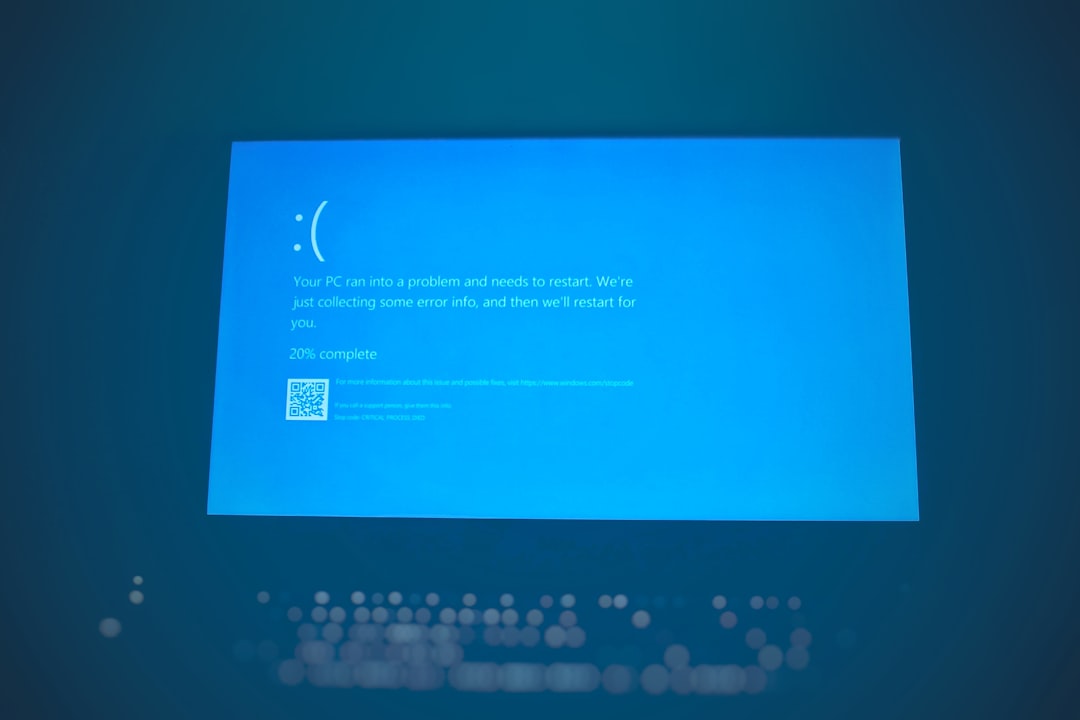
The “Your PC ran into a problem and needs to restart” error—commonly known as the Blue Screen of Death (BSOD)—is one of the most serious system errors in Windows 10 and Windows 11. It usually appears unexpectedly, forces your computer to restart, and may cause data loss if not properly addressed. While it can look alarming, this error is not the end of your system. In most cases, it is caused by driver issues, hardware problems, corrupted system files, or recent updates—and it can be fixed with a structured troubleshooting approach.
TL;DR: The “Your PC ran into a problem” error is typically caused by faulty drivers, corrupted system files, hardware failures, or problematic updates. Start by noting the stop code, then update drivers, run built-in repair tools like SFC and DISM, check hardware components, and uninstall recent updates. If necessary, use System Restore or reset Windows. Most cases can be resolved without professional repair.
What Causes the “Your PC Ran Into a Problem” Error?
This error occurs when Windows encounters a critical system failure that it cannot recover from safely. Instead of allowing further damage, the system shuts down and displays a blue recovery screen along with a stop code.
Common causes include:
- Outdated or incompatible device drivers
- Corrupted Windows system files
- Faulty RAM or failing hard drives
- Overheating hardware components
- Problematic Windows updates
- Malware infections
The stop code shown on the screen—such as CRITICAL_PROCESS_DIED, MEMORY_MANAGEMENT, or IRQL_NOT_LESS_OR_EQUAL—offers important clues about the source of the issue.
Step 1: Note the Stop Code
Before restarting your computer, carefully write down the stop code. This code guides the troubleshooting process. Some codes indicate memory problems, while others point to driver conflicts or disk corruption.
If the screen flashes too quickly, you can find past crash information in the Event Viewer:
- Right-click the Start button and select Event Viewer
- Navigate to Windows Logs > System
- Look for entries marked Critical
Step 2: Boot Into Safe Mode
If your PC keeps restarting in a loop, booting into Safe Mode allows you to troubleshoot without loading unnecessary drivers or applications.
- Restart your PC and interrupt boot three times to enter Automatic Repair
- Select Troubleshoot > Advanced options > Startup Settings
- Click Restart
- Press 4 or F4 to enable Safe Mode
Safe Mode can help you uninstall drivers, remove software, or run diagnostic tools.
Step 3: Update or Roll Back Drivers
Driver issues are among the most common causes of BSOD errors. A newly installed or outdated driver may conflict with Windows.
To update a driver:
- Right-click Start and select Device Manager
- Expand the relevant category (such as Display adapters)
- Right-click the device and select Update driver
If the problem started after a recent update, you may need to roll back the driver instead:
- Open Device Manager
- Right-click the device and select Properties
- Under the Driver tab, choose Roll Back Driver

Step 4: Run Windows Repair Tools (SFC and DISM)
Corrupted system files can trigger fatal errors. Windows includes two powerful built-in tools to repair system damage:
System File Checker (SFC)
- Open Command Prompt as Administrator
- Type: sfc /scannow
- Press Enter and wait for completion
This tool scans and replaces damaged system files automatically.
Deployment Image Servicing and Management (DISM)
If SFC does not fix the issue, run:
DISM /Online /Cleanup-Image /RestoreHealth
DISM repairs the Windows system image, which SFC depends on.
Step 5: Check for Windows Updates
Sometimes Microsoft releases patches that address known BSOD issues. Installing the latest updates can resolve compatibility conflicts.
- Open Settings
- Go to Windows Update
- Click Check for updates
However, if the error started immediately after an update, consider uninstalling recent updates:
- Go to Settings > Windows Update > Update history
- Select Uninstall updates
Step 6: Test Your Hardware
Hardware failures frequently trigger blue screen errors, particularly memory and storage devices.
Check RAM
- Press Windows + R
- Type mdsched.exe
- Restart and allow the memory diagnostic test to run
Check Your Hard Drive
Run the following command in an elevated Command Prompt:
chkdsk /f /r C:
This scans for disk errors and bad sectors.
If hardware tests indicate issues, physical replacement may be necessary.
Step 7: Use System Restore
If your computer previously worked correctly, System Restore can return Windows to an earlier state without affecting personal files.
- Search for Create a restore point
- Click System Restore
- Select a restore point before the error began
This method is particularly effective after problematic updates or software installations.
Step 8: Scan for Malware
Malicious software can corrupt essential system processes. Run a full scan using:
- Windows Security
- A reputable third-party antivirus tool
A thorough scan ensures hidden threats are not disrupting system stability.
Built-In Repair Tools Comparison
| Tool | Primary Purpose | Difficulty Level | When to Use |
|---|---|---|---|
| SFC | Repairs corrupted system files | Easy | After sudden crashes or file corruption |
| DISM | Repairs Windows system image | Moderate | When SFC fails to fix issues |
| CHKDSK | Scans and repairs disk errors | Moderate | If stop code indicates disk problems |
| Memory Diagnostic | Tests RAM stability | Easy | When encountering memory related errors |
| System Restore | Reverts system to previous state | Easy | After updates or software conflicts |
Step 9: Reset Windows as a Last Resort
If none of the above solutions resolve the issue, resetting Windows may be necessary.
- Go to Settings > System > Recovery
- Select Reset this PC
- Choose to keep your files or remove everything
This reinstalls Windows and removes software conflicts while optionally preserving personal data.
Preventing Future Blue Screen Errors
While some hardware failures are unavoidable, you can significantly reduce future BSOD incidents by following best practices:
- Keep Windows and drivers updated
- Avoid installing unverified software
- Monitor CPU and GPU temperatures
- Use surge protection to prevent electrical damage
- Perform regular malware scans
- Back up important data weekly
Proactive system maintenance dramatically improves stability and reduces critical failures.
When to Seek Professional Help
If your PC continues to crash despite performing all troubleshooting steps, the problem may involve:
- Failing motherboard components
- Power supply instability
- Advanced driver conflicts
- Severe hardware degradation
In such cases, consulting a certified technician is recommended.
Final Thoughts
The “Your PC ran into a problem” error in Windows 10 and 11 may appear overwhelming, but it is typically solvable with systematic troubleshooting. By identifying the stop code, checking drivers, repairing system files, and testing hardware, you can resolve the vast majority of cases without replacing your computer.
Act methodically, document changes carefully, and avoid rushing into drastic solutions. In many scenarios, a simple driver update or system repair command is enough to restore full stability. With proper maintenance and vigilance, your Windows system can remain reliable and resilient for years to come.