You sit down to work or play. You turn on your computer. And there they are. Thin, bright, annoying green lines on your monitor. Maybe one line. Maybe many. They don’t move. Or worse, they flicker. It’s distracting. It’s frustrating. And it makes you worry something is broken.
TLDR: Green lines on a monitor are usually caused by loose cables, driver issues, dead pixels, or hardware damage. Start with simple fixes like checking cables and updating drivers. If the lines appear in screenshots, it’s likely a software or graphics card issue. If they don’t, the monitor itself may be the problem. Most issues can be diagnosed in under 15 minutes.
Let’s break it down in a simple way. No tech degree needed.
Why Are There Green Lines on My Monitor?
Green lines usually fall into one of these categories:
- Loose or damaged cable
- Graphics driver problems
- Dead or stuck pixels
- Graphics card issues
- Physical monitor damage
The good news? Many of these are easy to fix.
But first, let’s do a quick test.
Quick Test: Screenshot Trick
Take a screenshot of your screen.
- On Windows: Press Windows + Shift + S
- On Mac: Press Command + Shift + 3
Now send that screenshot to your phone or another device.
- If you see the green line in the screenshot → It’s likely a graphics or software issue.
- If you don’t see the line → It’s probably a monitor hardware issue.
This tiny test saves you hours of guessing.
1. Check And Reseat Your Cables
This sounds boring. But it fixes the issue more often than you’d think.
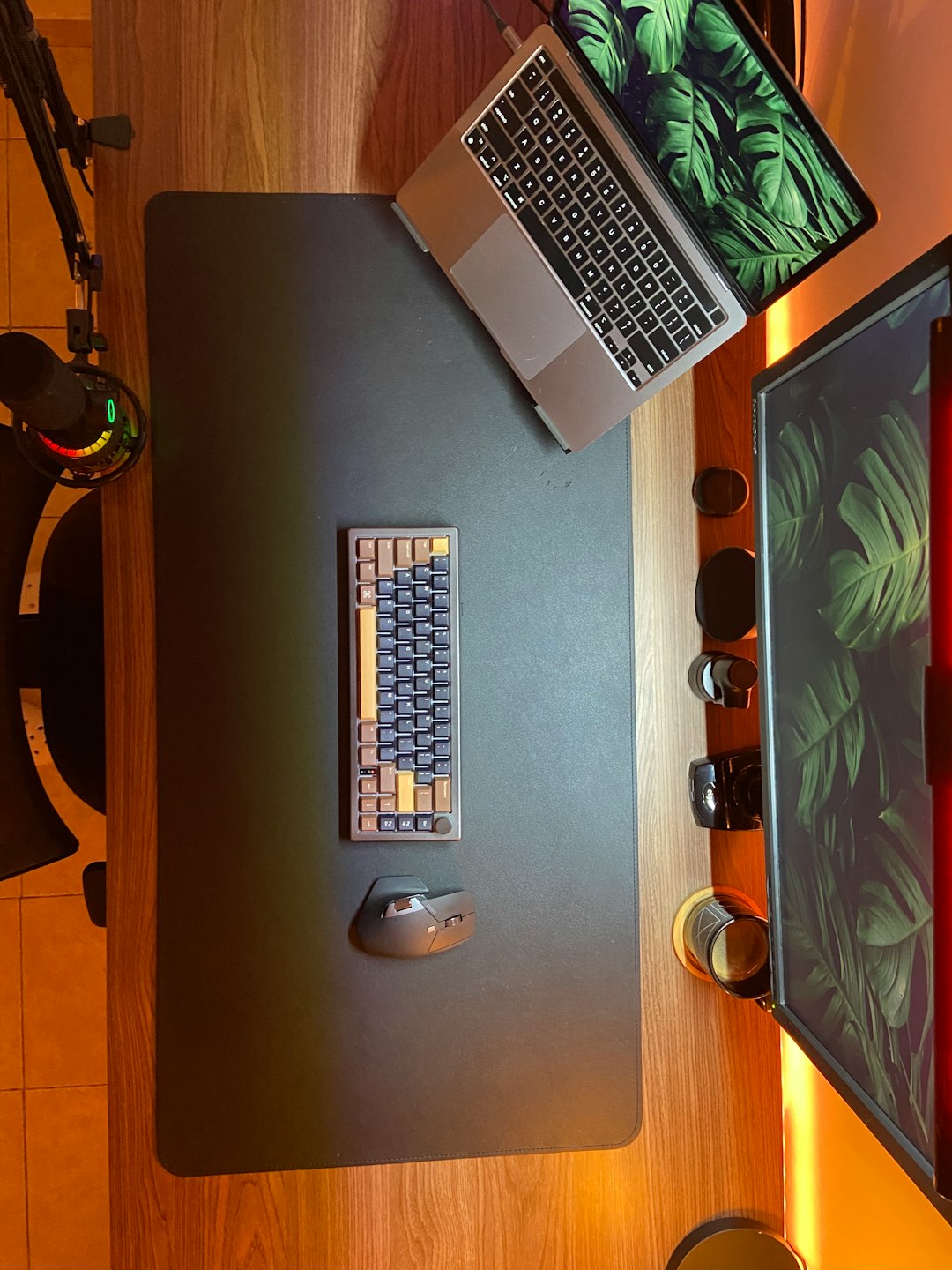
Loose HDMI or DisplayPort cables can cause weird vertical or horizontal lines. Including green ones.
What To Do:
- Turn off your computer.
- Unplug the monitor cable from both ends.
- Check for bent pins or dust.
- Plug it back in firmly.
- Turn everything back on.
Still there?
Try a different cable. Cables fail more than monitors do.
If possible, try a different port on your computer. For example:
- Switch from HDMI to DisplayPort
- Or try another HDMI slot
Mac users: If you’re using a dongle or adapter, that could be the issue. Test without it if possible.
2. Update Or Reinstall Graphics Drivers
Drivers are the software that help your operating system talk to your graphics card.
If they glitch, your screen can glitch.
For Windows Users:
- Right-click the Start button.
- Click Device Manager.
- Expand Display Adapters.
- Right-click your graphics card.
- Choose Update driver.
If that doesn’t help, uninstall the driver and restart your PC. Windows will reinstall it automatically.
For Mac Users:
macOS updates include graphics driver updates.
- Click the Apple menu.
- Go to System Settings.
- Select General.
- Click Software Update.
If there’s an update available, install it.
Many green line problems disappear after a simple update.
3. Check For Dead Or Stuck Pixels
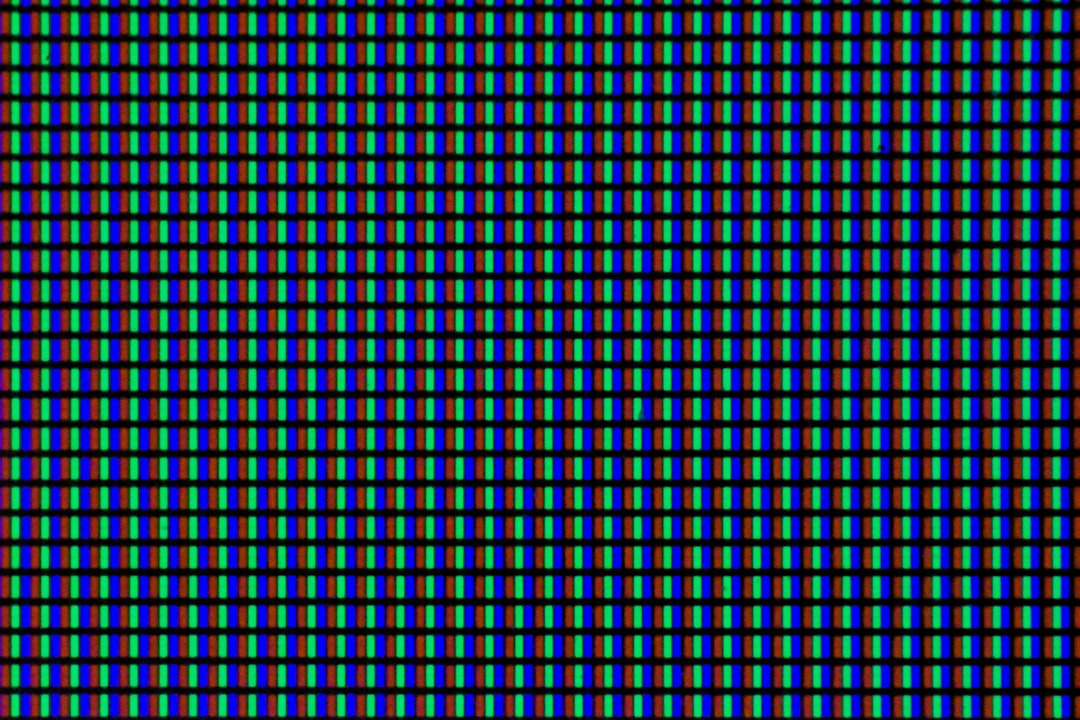
If the green line is very thin and never moves, it could be stuck pixels.
This happens when small groups of pixels stop responding properly.
How To Test:
- Open a full-screen red image.
- Then blue.
- Then white.
- Then black.
If the green line stays visible on all colors, it’s likely pixel damage.
Quick Fix Attempt:
- Use an online pixel fixer tool.
- Let it run for 10–20 minutes.
Sometimes this unsticks the pixel.
Sometimes it doesn’t.
If the monitor is under warranty, now is a good time to check it.
4. Test With Another Device
This is a powerful troubleshooting move.
Plug your monitor into:
- A different laptop
- A gaming console
- Another desktop computer
If the green lines disappear, your original computer is the issue.
If the lines remain, your monitor is likely damaged.
This method isolates the problem fast.
No guessing. Just facts.
5. Check Your Graphics Card
If the lines appear in screenshots, there’s a good chance your graphics card is struggling.
This is more common on:
- Older computers
- Gaming PCs
- Systems that overheat
Signs It’s A Graphics Card Problem:
- Lines flicker during gaming
- Screen glitches under heavy load
- Random crashes
- Weird colors or artifacts
What To Try:
- Restart your computer
- Update drivers
- Clean dust from inside the PC
- Check GPU temperatures
If you’re comfortable opening your desktop, remove and reseat the graphics card.
Laptop users: This is harder. You may need professional repair.
What If You Dropped The Monitor?
Let’s be honest.
Did something hit it?
Even small impacts can damage the LCD panel. When that happens, vertical or horizontal green lines are common.
If that’s the case, repair may cost almost as much as a new monitor.
In many situations, replacement makes more sense.
Are Green Lines Dangerous?
No. Not physically.
Your computer isn’t going to explode.
But they can signal failing hardware.
Ignoring early signs could mean bigger problems later. Especially with graphics cards.
How To Prevent Green Lines In The Future
Here are some simple habits that help:
- Don’t bend cables sharply
- Keep your system cool
- Update your OS regularly
- Dust your PC every few months
- Use surge protectors
Heat and power surges cause more screen issues than people realize.
When To Replace Your Monitor
It might be time for a new one if:
- The lines are spreading
- They’re permanent and thick
- The monitor is over 7–8 years old
- Repair costs more than 50% of a new display
Modern monitors are surprisingly affordable.
And much better looking.
Quick Recap Of The 5 Fixes
- Reseat or replace cables
- Update or reinstall drivers
- Test for dead pixels
- Try another device
- Inspect graphics card health
Do these in order.
Start simple. Move to advanced.
Most people fix the issue before step three.
Final Thoughts
Green lines on a monitor look scary.
But they’re usually not the end of your computer.
In many cases, it’s just a loose cable. Or an outdated driver. Easy stuff.
Take 15 minutes. Run the tests. Try the fixes.
If it’s hardware damage, at least you’ll know for sure.
And that peace of mind? Totally worth it.
Remember: Diagnose first. Panic later.