You open your macOS Terminal, type claude, and press Enter. Instead of launching the Claude CLI, you see: zsh: command not found: claude. That message can stop your workflow instantly. The good news is this error usually means your shell cannot find the Claude executable, not that Claude or Anthropic servers are down. In this guide, you’ll learn what this error means and 7 practical ways to fix it.
What Does “zsh: command not found: claude” Mean?
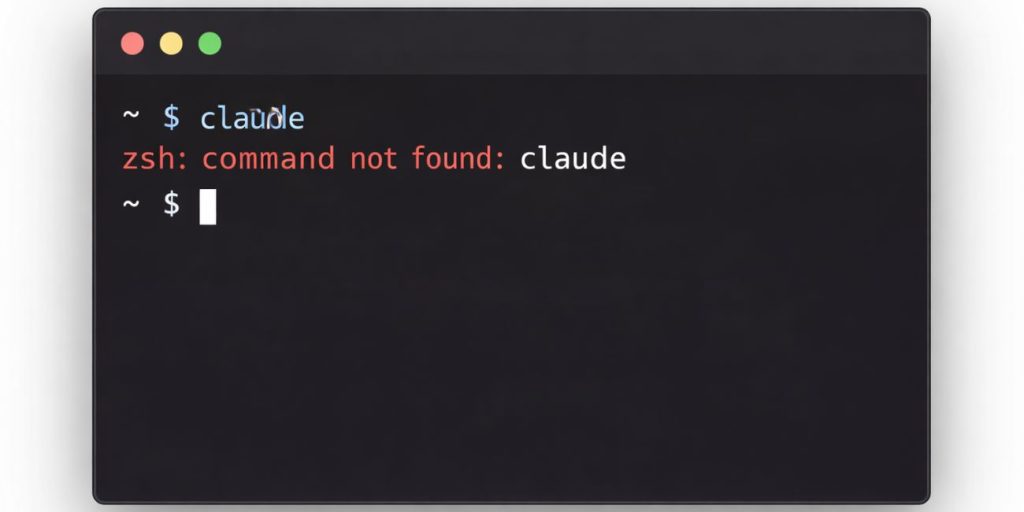
When zsh shows “command not found,” it means the Z shell cannot locate the claude command in your system’s PATH environment variable. On macOS and many Linux systems, zsh searches specific directories for executable files. If the Claude CLI is not installed, not installed globally, or not linked correctly, the shell will not recognize the command. This issue relates to your local development environment, not to Claude AI or Anthropic cloud services.
You will usually see this error inside macOS Terminal, iTerm, or any Linux shell after attempting to run the claude command.
Common Causes of This Error
This error usually occurs when the Claude CLI is not installed properly or your shell configuration is incomplete.
- Claude CLI is not installed at all
- npm global installation did not complete
- PATH variable does not include npm global directory
- Node.js is missing or outdated
- Homebrew installation not linked correctly
- zsh shell profile not reloaded
- Incorrect command spelling
Each cause affects how the terminal locates executables.
How to Fix zsh: command not found: claude Error on macOS?
To resolve this issue efficiently, verify installation and confirm your environment variables are configured correctly. Most fixes take only a few minutes.
Fix #1: Check If Claude CLI Is Installed
Before changing anything, confirm whether Claude CLI exists on your system.
Follow these steps:
- Open Terminal.
- Run
npm list -g --depth=0. - Check if Claude appears in the global package list.
- If it does not appear, it is not installed globally.
If you do not see it listed, proceed to install it.
Fix #2: Install Claude CLI Globally via npm
If Claude CLI is not installed, install it globally so zsh can access it.
You can perform the following steps:
- Ensure Node.js is installed.
- Run
npm install -g claudein Terminal. - Wait for installation to complete.
- Run
claude --versionto test.
Global installation places the executable in a directory referenced by your PATH.
Fix #3: Verify Node.js Installation
Claude CLI depends on Node.js. If Node.js is missing, npm commands will fail.
Follow these steps:
- Run
node -vin Terminal. - If no version appears, install Node.js from the official website.
- Restart Terminal after installation.
- Retry the Claude install command.
Without Node.js, the CLI cannot function.
Fix #4: Add npm Global Directory to PATH
Sometimes npm installs packages globally, but zsh does not know where to find them.
Here’s how you can check and update your PATH:
- Run
npm config get prefix. - Note the directory path shown.
- Open your
.zshrcfile usingnano ~/.zshrc. - Add the directory to your PATH using
export PATH="$PATH:/your/npm/path". - Save and close the file.
This tells zsh where to search for the Claude executable.
Fix #5: Reload Your zsh Shell
After editing .zshrc, the shell must reload configuration.
Try these steps:
- Run
source ~/.zshrc. - Close Terminal.
- Reopen Terminal.
- Test the
claudecommand again.
Reloading ensures the new PATH variable is active.
Fix #6: Check Homebrew Installation
If you installed Claude using Homebrew, linking may be required.
Follow these steps:
- Run
brew listto check installed packages. - Confirm Claude appears in the list.
- If needed, run
brew link claude. - Restart Terminal.
Homebrew sometimes installs software without linking it to the shell path.
Fix #7: Confirm Correct Command Usage
Sometimes the issue is simple. The command may be typed incorrectly or aliased differently.
Check the following:
- Confirm spelling:
claude - Avoid extra spaces or hidden characters
- Run
which claudeto test detection - Check for command aliases in
.zshrc
Small typos can trigger the error.
Prevention Tips to Avoid CLI Command Errors
Proper setup prevents most terminal errors. Claude CLI works smoothly when installation and environment variables are configured correctly. After installing any CLI tool, always test it immediately. Restart your terminal session. Verify your PATH variable. Keep Node.js updated. Avoid mixing multiple package managers for the same tool. And always follow official Anthropic documentation when installing developer tools.
- Install CLI tools globally if required
- Restart shell after installation
- Keep Node.js updated
- Verify PATH configuration
- Avoid mixing npm and Homebrew without checking paths
- Test commands right after install
- Maintain a clean shell configuration
Conclusion
The error “zsh: command not found: claude” means your shell cannot locate the Claude CLI executable. In most cases, the problem relates to installation, PATH configuration, or Node.js setup. It is not a server issue and does not mean Claude AI is offline.
Work through the fixes step by step. Once the CLI is properly installed and linked, the command should run normally. If this guide helped, share it with other developers or leave a comment with your setup experience.