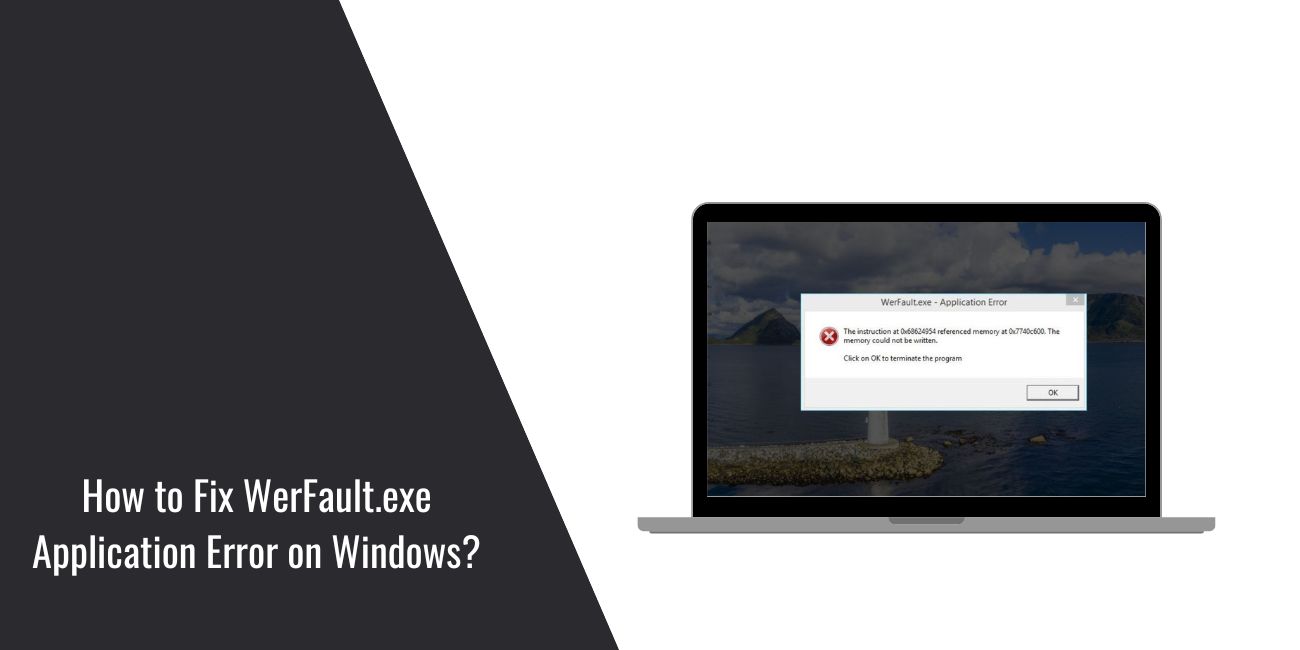
You’re using your PC, an app crashes, and suddenly a pop-up shows WerFault.exe application error. That moment can feel worrying. It interrupts what you were doing and makes you wonder if something serious is wrong. This issue appears on Windows systems and often repeats until it’s addressed. In this article, you’ll learn what WerFault.exe is, why this error shows up, and how to reduce the chances of seeing it again on your system.
What Is WerFault.exe?
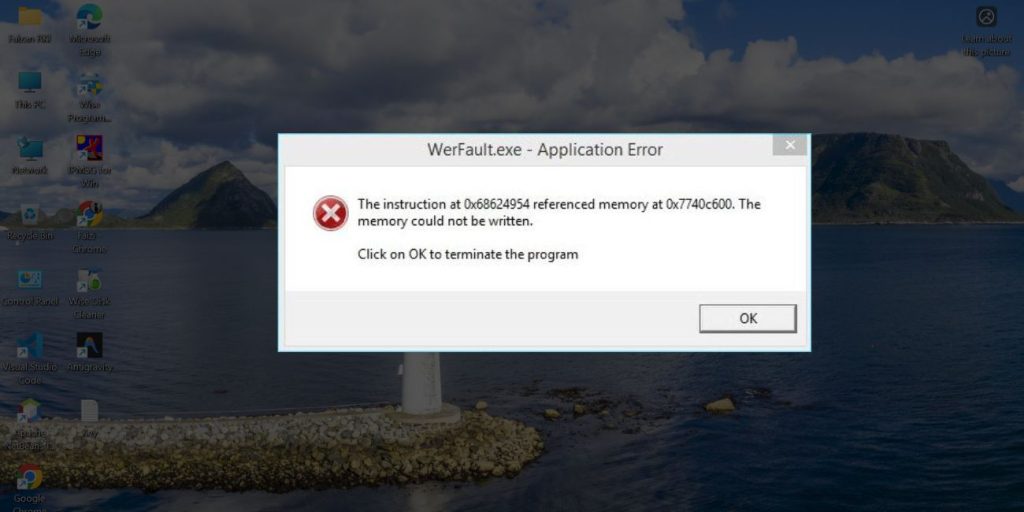
WerFault.exe is part of Windows and belongs to Windows Error Reporting. Its job is to activate when an application crashes. When it runs normally, it collects basic crash details and may ask whether you want to send a report. That helps Microsoft understand why apps fail.
You usually see WerFault.exe activity right after a program closes unexpectedly. The error may appear as a pop-up, a frozen screen, or repeated crash messages. This happens on both Windows 10 and Windows 11 systems.
Is WerFault.exe a Virus?
WerFault.exe itself is not a virus. It is a legitimate Windows system process. When it lives in the correct system folder and behaves normally, it is safe. Many users worry because the error appears often or consumes resources, but that alone does not mean malware.
Problems arise when something triggers WerFault.exe repeatedly. In rare cases, malicious software may pretend to be a system file. That’s why unusual behavior, constant pop-ups, or files running from the wrong location should never be ignored.
Most of the time though, WerFault.exe errors come from software or system conflicts, not malware.
Common Causes of WerFault.exe Application Error
This error usually means something else failed first. WerFault.exe appears after another app or system component crashes. Understanding the triggers helps you decide whether the issue is minor or needs attention.
Here are the most common reasons this error appears:
- Corrupted Windows system files
- Faulty or outdated applications
- Software conflicts during startup
- Incomplete or failed Windows updates
- Memory or RAM issues
- Malware or unwanted programs
- Damaged or unstable user profile
When these issues occur, Windows tries to log the crash. If the reporting process fails, the WerFault.exe error appears.
How to Fix WerFault.exe Application Error?
This error usually appears after another app crashes. Fixing it means stopping the crash loop and repairing what Windows depends on. Go through these fixes in order. Try one fix, restart your PC, and see if the error returns. If it does, move to the next.
Fix #1: Restart Windows Error Reporting Service
Sometimes the reporting service itself gets stuck. Restarting it can clear the loop.
Here are the steps you can follow:
- Press Win + R
- Type services.msc and press Enter
- Find Windows Error Reporting Service
- Right-click it and choose Restart
- Close the window
- Restart your PC
This refreshes the service without changing system files.
Fix #2: Run System File Checker (SFC)
Corrupted system files often trigger repeated crashes.
Follow the steps below carefully:
- Open Command Prompt as administrator
- Type sfc /scannow
- Press Enter
- Wait for the scan to complete
- Restart your computer
SFC repairs damaged Windows files used by Windows processes.
Fix #3: Use DISM to Repair Windows Image
If SFC cannot fix everything, DISM can repair deeper system images.
Here’s how you can do it:
- Open Command Prompt as administrator
- Type DISM /Online /Cleanup-Image /RestoreHealth
- Press Enter
- Wait until the process finishes
- Restart your PC
This fix helps when updates or system images are damaged.
Fix #4: Update Windows Completely
Outdated or broken updates can cause reporting errors.
Open Windows Settings. Go to Windows Update. Install all available updates. Restart your system after updates finish. Many WerFault.exe errors stop after pending updates are applied.
Fix #5: Uninstall Recently Installed or Crashing Apps
If the error started after installing an app, that app may be the trigger.
Uninstall recently added software, especially games or tools that crash on launch. Restart your PC and check if the WerFault.exe error still appears.
Fix #6: Scan Your System for Malware
While WerFault.exe itself is safe, malware can cause apps to crash repeatedly.
Run a full system scan using a trusted antivirus or Windows Security. Remove any detected threats. Restart your PC once the scan finishes.
Fix #7: Create a New Windows User Profile
A damaged user profile can cause repeated system errors.
Create a new user account. Log into the new profile and test your apps. If the error does not appear there, the original profile may be corrupted.
How to Prevent WerFault.exe Errors in the Future?
Prevention focuses on keeping Windows stable and reducing crash triggers. While not every crash can be avoided, healthy system habits reduce how often this error shows up.
- Keep Windows updated regularly
- Avoid installing unstable or unknown software
- Remove apps you no longer use
- Run regular antivirus scans
- Monitor system performance and memory usage
- Back up important data
- Restart your PC occasionally
Conclusion
To summarize, WerFault.exe is a Windows system process that reports application crashes. The application error appears when something goes wrong during that reporting process. It often looks alarming, but in most cases, it points to underlying app or system issues, not a virus.
If this article helped you understand what’s happening, share it with someone else seeing the same error. You can also leave a comment below and mention when the error appears on your system. That detail can help others figure out their next step faster.