It feels pretty frustrating when you open VRChat and it refuses to log in. You try to sign in, but the screen shows an error and stops you from entering worlds or seeing your friends. This guide explains what the VRChat login error means, why it appears, and how you can fix it fast on Steam, Meta Quest, or the desktop VRChat application.
What Is The VRChat Application Login Error?
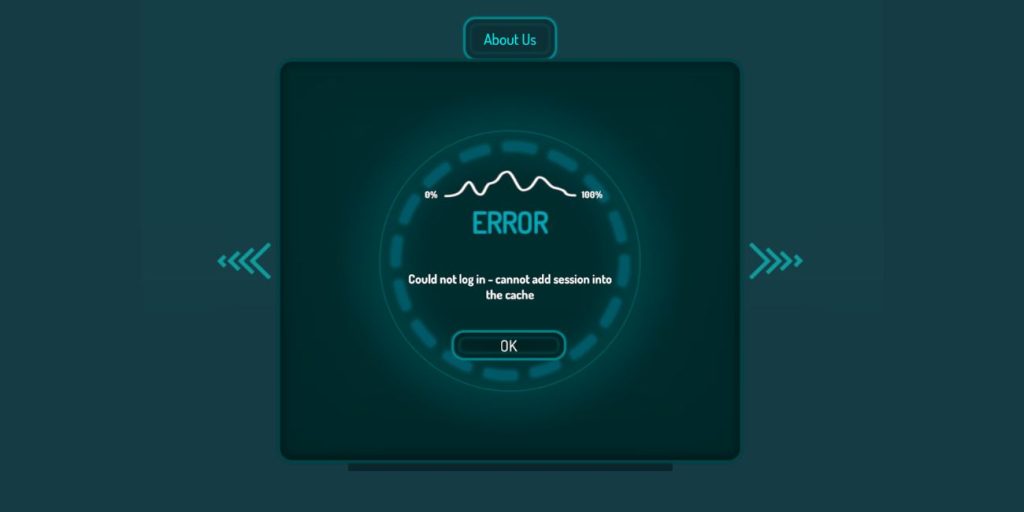
This error shows up when VRChat cannot check your account with its authentication servers. The app tries to confirm your username, password, token, or 2FA code, but something blocks the request. When the server cannot verify you, VRChat stops the login and sends back an error.
You might see this on the VRChat desktop app, SteamVR login screen, Oculus PC app, or the Meta Quest standalone version. It also appears when cached credentials get corrupted or when something on your device blocks VRChat’s connection.
Common Causes Of VRChat Application Login Error
This problem can show up for different reasons depending on your system or network:
- VRChat servers are down
- Wrong username or password
- Two Factor Authentication failure
- Corrupted VRChat cache or login token
- VPN or proxy blocking the login request
- Firewall or antivirus blocking VRChat
- Incorrect time or outdated VRChat version
How to Fix VRChat Application Login Error?
These fixes help most players get back into VRChat quickly. Try them one at a time.
Fix 1: Check VRChat Server Status
Sometimes the issue is not on your side at all. VRChat servers go down during updates, high traffic, or maintenance. When the servers fail, login requests return errors.
Check the VRChat status page or the VRChat Twitter support account. If servers are down, you will need to wait until they come back online.
Fix 2: Reset Your Account Password Or 2FA Code
If your login details are wrong or if your 2FA code gets rejected, VRChat stops authentication. Try logging in on the VRChat website. If that works, update your password or regenerate your 2FA code. Then try logging in again inside the VRChat app.
Fix 3: Clear VRChat Cache (Windows / Quest)
Corrupted cache files break login tokens and cause looping login screens.
Here are the following steps which help you clear the VRChat cache on Windows:
- Close VRChat
- Open File Explorer
- Go to AppData
- Open LocalLow
- Open VRChat
- Delete the Cache and Data folders
- Restart VRChat and try logging in
On Quest, uninstalling and reinstalling the VRChat app clears the cache.
Fix 4: Turn Off VPN, Proxy, Or Custom DNS
VPNs and proxies reroute your connection and often break authentication tokens. Custom DNS can also interfere with VRChat’s login API.
Follow these steps below to disable them:
- Open your VPN app
- Tap Disconnect
- Open your network settings
- Remove proxy settings
- Set DNS back to automatic
- Restart VRChat
- Try logging in again
If the login works now, your VPN or DNS was the issue.
Fix 5: Allow VRChat Through Firewall Or Antivirus
Firewalls and security tools can block VRChat’s login servers. When this happens, the app cannot reach the authentication API.
Perform the following steps carefully:
- Open Windows Security
- Go to Firewall and network protection
- Tap Allow an app through firewall
- Add VRChat
- Add Steam or Oculus if needed
- Restart your device
- Try logging in again
Fix 6: Sync Your Device’s Time And Date
If your system time is wrong, VRChat rejects your login. Authentication tokens depend on correct time sync.
Here’s how you can sync your clock:
- Open your system settings
- Go to Time and Language
- Turn on Set time automatically
- Restart VRChat
This small fix solves the login error for many users.
Fix 7: Log Out And Back Into Steam / Oculus / Quest
Sometimes the Steam token, Oculus token, or Quest token expires. Logging out refreshes it. Sign out of Steam or your Oculus/Meta account, then sign back in. After that, launch VRChat again and try logging in.
Fix 8: Update VRChat To The Latest Version
VRChat blocks older clients when they no longer match the server version. If your app is outdated, login fails. Update VRChat through Steam, Oculus, or the Quest Store. Once updated, try logging in again.
Fix 9: Switch Networks Or Restart Your Router
A bad network, strict router settings, or ISP filtering can block VRChat’s login requests.
Switch to another network, try mobile hotspot, or restart your router. If it works on a different network, the issue is with your home connection.
Prevention Tips to Avoid Login Errors in VRChat
Keep VRChat running smoothly with these habits:
- Keep VRChat updated
- Avoid using VPNs during login
- Sync your system clock
- Clear VRChat cache once a month
- Keep your 2FA backup codes ready
- Restart your router weekly
- Avoid spam login attempts to prevent rate limits
Conclusion
VRChat login errors usually happen when the app cannot verify your account. This can come from server problems, wrong login details, VPN interference, corrupted cache, or an outdated version. The good news is that most issues clear up after you reset your network or refresh your login settings.
Try each fix one by one until VRChat lets you sign in. If the problem continues, contact VRChat Support for deeper help. And if this guide helped, feel free to share it with friends so they can log in too.