Getting Paramount Plus error code 3005 can ruin a good streaming moment fast. You press play, wait a bit, and the video refuses to load. This error matters because it stops shows or movies from playing at all. Sometimes it happens in the middle of a stream, and sometimes it appears right at the start.
This guide explains what the error means, why it happens, how to fix it step by step, and how to avoid it later.
What Is Paramount Plus Error Code 3005?
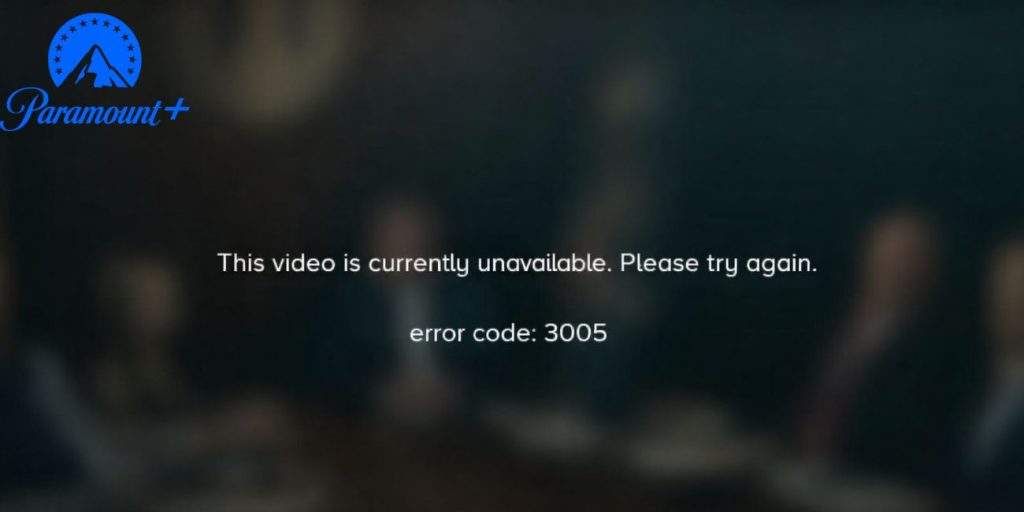
Paramount Plus error code 3005 is a video playback error. It shows up when the app or website cannot stream video properly. This usually means the service failed to load content from its servers. The error does not point to a billing issue or account suspension. It relates to streaming conditions instead.
Most users see error code 3005 after pressing play on a show or movie. It can appear during buffering or shortly after playback begins. The error shows up on smart TVs, mobile apps, web browsers, and streaming devices.
Common Causes of Paramount Plus Error Code 3005
This error can happen for several reasons, depending on your device and internet setup. Some causes are temporary, while others relate to app data or network behavior. Below are the most common reasons users face this issue.
- Unstable or slow internet connection
- Temporary Paramount Plus service issue
- Corrupted app cache or stored data
- Outdated Paramount Plus app
- Device compatibility issue
- VPN or proxy interference
- DNS or network routing problem
How to Fix Paramount Plus Error Code 3005?
In most cases, error code 3005 clears after fixing streaming or connection problems. However, the right fix depends on your device and network. Try the fixes below in order. Stop once the video plays normally again.
Fix #1: Restart the Paramount Plus App
Sometimes the app just needs a fresh start. Temporary glitches can interrupt video playback and trigger error code 3005. Closing and reopening the app clears minor issues and reloads the streaming session.
Fully close the app, wait a few seconds, and open it again. Try playing the video once more and see if the error disappears.
Fix #2: Check Your Internet Connection
Paramount Plus needs a stable internet connection to stream video. If the connection drops or slows down, playback can fail. This often causes error code 3005 during loading.
Restart your router, switch to a stronger Wi-Fi signal, or try a wired connection if possible. Once the connection stabilizes, reopen the app and try again.
Fix #3: Clear App Cache or Browser Data
Cached data helps apps load faster, but corrupted cache can break video playback. Clearing cache removes damaged files and forces the app to load fresh data. This fix works well on mobile devices, smart TVs, and web browsers.
After clearing cache, the app usually streams content without errors.
Follow the steps below to clear app cache or browser data:
- Open your device settings or browser settings
- Go to Apps or Privacy settings
- Find Paramount Plus
- Select Storage or Site data
- Choose Clear cache or Clear data
- Restart the app or browser
- Sign in again and try streaming
Fix #4: Disable VPN or Proxy Services
VPNs and proxy services can interfere with streaming. Paramount Plus may block certain IP addresses used by VPNs. When this happens, playback fails and error code 3005 appears.
Turning off the VPN allows the service to stream from your real location.
Here’s how you can disable VPN or proxy services in just a few seconds:
- Close the Paramount Plus app or browser
- Open your VPN or proxy application
- Click Disconnect or Turn Off
- Make sure the VPN icon disappears
- Restart your internet connection
- Open Paramount Plus again
- Try playing the video
Fix #5: Update the Paramount Plus App or Browser
An outdated app or browser can cause streaming errors like error code 3005. Paramount Plus updates its platform often, and older versions may fail to load video correctly. Updating ensures the app or browser supports current playback and security requirements. This fix is simple and works on phones, smart TVs, and computers.
Follow the steps below to update the Paramount Plus app or your web browser:
- Open your device’s app store or browser menu
- Search for Paramount Plus or open browser updates
- Check if an update is available
- Tap or click Update
- Wait for the update to finish installing
- Restart the app or browser
- Open Paramount Plus and try streaming again
Fix #6: Restart or Update Your Streaming Device
Sometimes the issue comes from the device itself. Long uptime or outdated system software can affect streaming performance. Restarting the device clears memory and refreshes background processes.
If updates are available for your smart TV, streaming stick, or mobile device, install them and try streaming again.
Fix #7: Contact Paramount Plus Support
If none of the fixes work, the issue may be on the service side or tied to your account region. In this case, contacting support is the safest option. Support teams can check service status and account-level issues.
When contacting support, share the error code, device type, app version, and time the error appears. This helps them assist you faster.
Prevention Tips to Avoid Paramount Plus Error Code 3005
Preventing this error helps avoid repeated playback issues. A few simple habits can keep streaming smooth.
- Use a stable Wi-Fi or wired connection
- Keep the app updated
- Restart streaming devices regularly
- Avoid VPNs while streaming
- Clear cache from time to time
- Keep device software updated
- Check service outage notices
Conclusion
In short, Paramount Plus error code 3005 is a playback issue linked to streaming conditions, app data, or network stability. It usually appears when videos fail to load or buffer correctly. Most causes involve internet problems, outdated apps, or VPN interference.
Try the fixes one by one and give each step time to work. If the error keeps showing up, contacting Paramount Plus support is the best next step. If this guide helped you, share it with others and leave a comment about which fix worked for you.