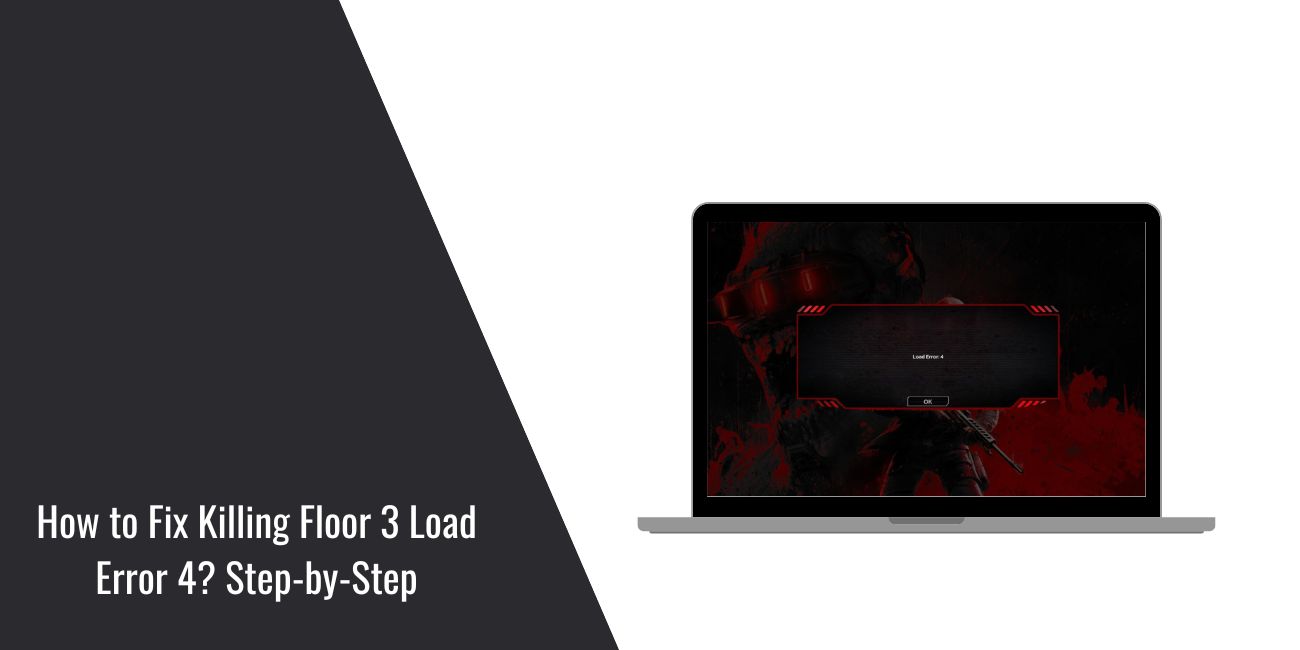
It’s frustrating when Killing Floor 3 refuses to load and shows Load Error 4. You try to start the game and it stops before you even reach the menu. When this happens, something in the game files, graphics setup, or cloud data is blocking the load. In this guide, you will learn what this error means, why it happens, how to fix it, and how to keep it from returning.
What Is Killing Floor 3 Load Error 4?
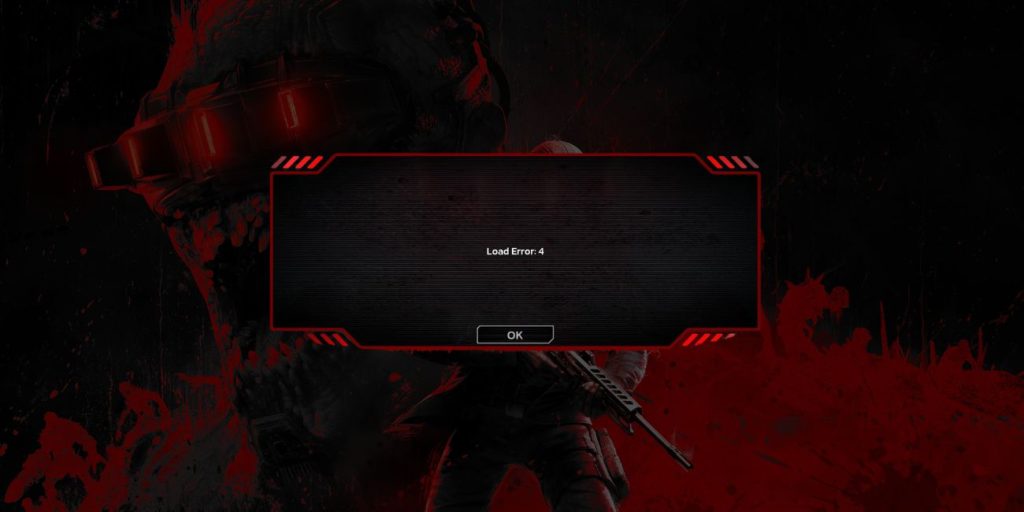
Killing Floor 3 Load Error 4 appears when the game engine cannot load important files. It might be missing assets, broken config files, or damaged save data. The Unreal Engine inside the game needs these files to build the scene, so the load fails when something is wrong.
You will usually see this error during startup, right after the splash screen, or when the game tries to load a map. It also shows up after a new update, a failed patch, or when Steam Cloud pushes corrupted save files to your computer.
Common Causes of Killing Floor 3 Load Error 4
This error can happen for different reasons depending on your PC and game setup. These are the most common causes to check.
- Corrupted Killing Floor 3 game files
- Damaged Steam Cloud save data
- Outdated GPU drivers from NVIDIA, AMD, or Intel
- Broken DirectX or Visual C++ redistributables
- File permission problems in Windows
- Mods or third party tools conflicting with game files
- Incomplete update or broken patch download
How To Fix Killing Floor 3 Load Error 4?
Fixes can change based on your system, but the steps below solve the issue for most players.
Fix 1: Verify Game File Integrity
Corrupted or missing files are the most common cause of Load Error 4. Verifying your files makes Steam or Epic repair anything broken. After the scan, the game can load assets correctly.
Follow the steps below to verify your game files.
- Open Steam or Epic Launcher.
- Go to Library.
- Right click Killing Floor 3.
- Select Properties.
- Click Verify or Scan for corrupted files.
- Wait for the repair to finish.
Fix 2: Disable Steam Cloud Sync
Steam Cloud sometimes uploads broken save files. When the game tries to load these files, you get Load Error 4. Turning off cloud sync forces the game to load only local files.
Here’s how you can disable Steam Cloud in just a few seconds.
- Open Steam.
- Go to Library.
- Right click Killing Floor 3.
- Tap Properties.
- Turn off Steam Cloud.
Fix 3: Update Your GPU Drivers
Outdated drivers can cause shader errors or missing graphics functions. This stops the game engine from loading scenes correctly and triggers Load Error 4.
Try these simple steps to update your driver.
- Open GeForce Experience, AMD Adrenalin, or Intel Arc Control.
- Go to the Drivers tab.
- Check for updates.
- Install the latest driver.
- Restart your PC.
Fix 4: Reinstall DirectX and Visual C++
DirectX and Visual C++ redistributables help the game load textures, audio, and engine data. When they break, the game cannot load assets and the error shows up.
You can perform the following steps to repair these packages.
- Press Windows + R.
- Type appwiz.cpl.
- Look for Microsoft Visual C++ entries.
- Tap Repair on each one.
- Install the latest DirectX package from Microsoft.
Fix 5: Delete Local Config and Save Files
Sometimes config files get corrupted during updates. When the game reads them, it fails to load. Removing these files forces the game to rebuild clean ones.
Here are the following steps which help you delete config files safely.
- Press Windows + R.
- Type %localappdata%.
- Open Killing Floor 3 folder.
- Delete Config and Save folders.
- Launch the game again.
Fix 6: Run the Game as Administrator
Killing Floor 3 may not load if Windows blocks access to certain folders. Running the game as an administrator gives it full permission to read required files.
Below are the steps to run the game as an administrator.
- Go to your Killing Floor 3 install folder.
- Right click the game executable.
- Tap Properties.
- Go to Compatibility.
- Check Run as administrator.
Fix 7: Remove Mods or Third Party Tools
Mods, reshade injectors, or old configuration tweaks can break the loading process. Removing them gives the game a clean environment to load.
Delete or disable any mods linked to Killing Floor 3, then restart the game.
Fix 8: Disable Firewall or Add Game Exceptions
Your firewall or antivirus might block the game from accessing files or downloading needed data. Adding an exception fixes this.
Perform the following steps carefully.
- Open Windows Security.
- Tap Firewall and network protection.
- Select Allow an app through firewall.
- Add Killing Floor 3 and your Steam or Epic Launcher.
- Restart your PC.
Fix 9: Move the Game to an SSD
If the game is installed on a slow HDD, asset loading might fail. This sometimes triggers Load Error 4. Moving the game to an SSD provides faster read speeds and smoother loading.
Install or move the game to an SSD with enough free space.
Fix 10: Reinstall Killing Floor 3
If everything else fails, the game might be fully corrupted. Installing it again gives you a clean set of files.
- Open Steam or Epic Launcher.
- Uninstall Killing Floor 3.
- Restart your PC.
- Reinstall the game on an SSD if possible.
Prevention Tips To Avoid Load Error 4
You can prevent most loading errors by keeping your setup clean and updated. These simple tips help keep Killing Floor 3 stable.
- Update your GPU drivers regularly
- Keep at least 20 to 30 GB of free space
- Restart your PC before long gaming sessions
- Avoid unstable mods
- Do not interrupt updates
- Keep Steam Cloud clean
- Close background apps that use heavy CPU or RAM
Conclusion
Killing Floor 3 Load Error 4 usually happens because of missing files, corrupted saves, old GPU drivers, or broken system components like DirectX. Most issues can be fixed by verifying game files, disabling Steam Cloud, updating drivers, or repairing system packages. These steps help the game load its assets correctly.
Try the fixes one by one until the game launches. If the error keeps showing up, reach out to Tripwire Interactive support or Steam Support for more help. And if this guide helped you, share it or leave a comment so others can fix the same issue.