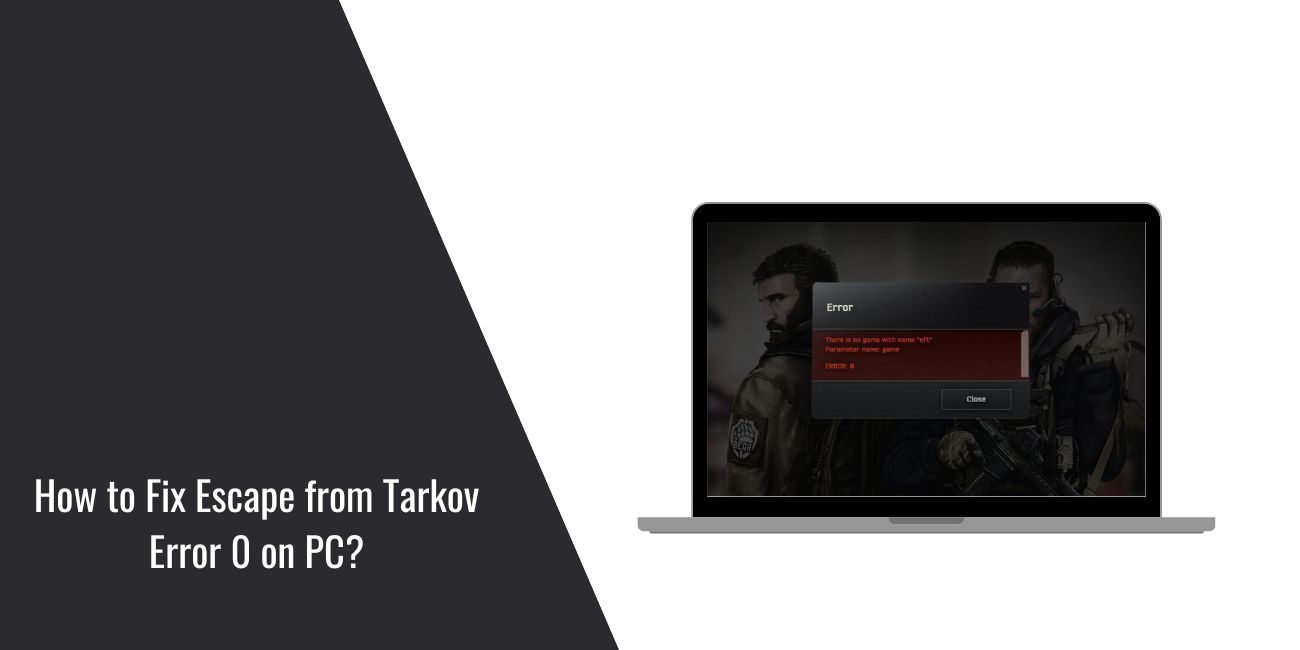
Seeing error 0 in Escape from Tarkov can stop your session before it even starts. You open the launcher, click play, and the game refuses to move forward. Sometimes it closes. Sometimes it freezes. This matters because you can’t reach the menu or enter a raid. Many players hit this error suddenly, even when the game worked before.
The good news is that error 0 is common and usually fixable. This guide explains what it means, why it happens, how to fix it, and how to avoid it later.
What Is Escape from Tarkov Error 0?
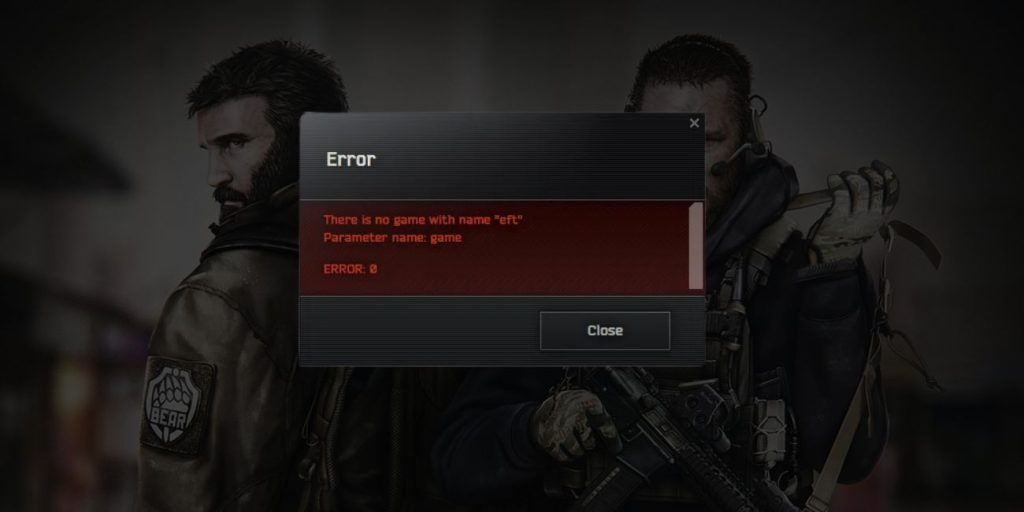
Error 0 appears when Escape from Tarkov fails a required check during startup or connection. Before the game fully opens, it verifies files, permissions, services, and network access. If one of these checks fails, the game stops and shows error 0. This is not a gameplay bug. It blocks access before you reach the main menu. The issue usually sits on the client side, not inside a raid.
Most players see error 0 in the Battlestate Games launcher or during the loading phase. The game may close, freeze, or refuse to continue past the startup screen.
Common Causes of Escape from Tarkov Error 0
This error usually comes from system, launcher, or network conflicts. It rarely means your hardware is broken. Small issues can trigger it.
- Battlestate Games launcher not running correctly
- Missing administrator permissions
- Antivirus blocking game files
- Firewall blocking network traffic
- Corrupted or missing game files
- Conflicting background applications
- Anti-cheat service not starting
- Temporary server-side issues
How to Fix Escape from Tarkov Error 0?
Fixes depend on your system setup and connection. Start with simple steps first. Restart when needed. Test after each fix so you know what works.
Fix #1: Restart PC and Game Launcher
A restart clears locked services and background tasks. Some services fail quietly and only recover after a full restart. Restarting reloads Windows services and resets the launcher environment.
After restarting, many players can launch the game without seeing error 0 again.
Here’s how you can restart cleanly:
- Close the game and launcher
- Restart your PC
- Wait until Windows fully loads
- Open the launcher again
- Try starting the game
Fix #2: Run Launcher and Game as Administrator
Escape from Tarkov needs permission to access system files and services. Without admin rights, Windows may block those actions. This often causes error 0 at launch.
Once you run the launcher as admin, required permissions become available.
Follow these easy instructions to run as admin:
- Close the launcher
- Right-click the launcher shortcut
- Select run as administrator
- Confirm the prompt
- Launch the game
Fix #3: Check Game Server Status
Sometimes the issue is not on your system. Server maintenance or outages can trigger error 0. When servers are unavailable, the game cannot complete connection checks.
If servers are down, waiting is the only fix. Restarting later often solves it.
Fix #4: Verify Game Files Integrity
Corrupted or missing files can block startup checks. File verification scans all game files and replaces broken ones automatically.
After verification, the launcher often allows the game to start normally.
Follow the steps below to verify game files:
- Open the Battlestate Games launcher
- Go to game settings
- Select verify or repair files
- Wait for the scan to finish
- Restart the launcher
Fix #5: Temporarily Disable Antivirus Software
Antivirus programs can block game services or files. This can trigger error 0. Disabling protection briefly helps confirm if this is the cause. Only disable antivirus for testing. Turn it back on after checking.
Fix #6: Allow Escape from Tarkov Through Firewall
Firewalls can block online game traffic. When this happens, Escape from Tarkov fails network checks and shows error 0.
After allowing the game through the firewall, connections usually work again.
These are the steps you need to follow to update firewall rules:
- Open Windows Security
- Go to firewall settings
- Allow an app through firewall
- Add the launcher and game
- Save changes
Fix #7: Close Conflicting Background Applications
Some background apps interfere with games. Overlays, system monitors, and recording tools can block services or network access.
Closing these apps often removes conflicts and lets the game start.
Try these simple steps to close background apps:
- Open Task Manager
- Review running applications
- Close unnecessary programs
- Keep only essential apps open
- Launch the game
Fix #8: Clear Game Cache and Temporary Files
Cached data can become corrupted over time. When this happens, startup checks fail. Clearing the cache forces the game to rebuild clean data.
After clearing cache files, error 0 often disappears.
Follow these instructions to clear cache safely:
- Close the launcher
- Open the game cache folder
- Delete temporary cache files
- Restart the PC
- Launch the game again
Prevention Tips to Avoid Escape from Tarkov Error 0
Preventing this error saves time and stress. Small habits help keep the game stable.
- Keep Windows updated
- Run the launcher with admin rights
- Avoid aggressive antivirus rules
- Close unused background apps
- Verify files after updates
- Restart your system regularly
- Watch server announcements
Conclusion
In short, Escape from Tarkov error 0 appears when the game fails startup or connection checks. Common causes include permission issues, blocked services, corrupted files, or background conflicts. Most cases are easy to fix.
Try each fix calmly and one at a time. If the error keeps coming back, official support may be needed. If this guide helped you, share it and leave a comment. Your experience could help another player fix the same problem.