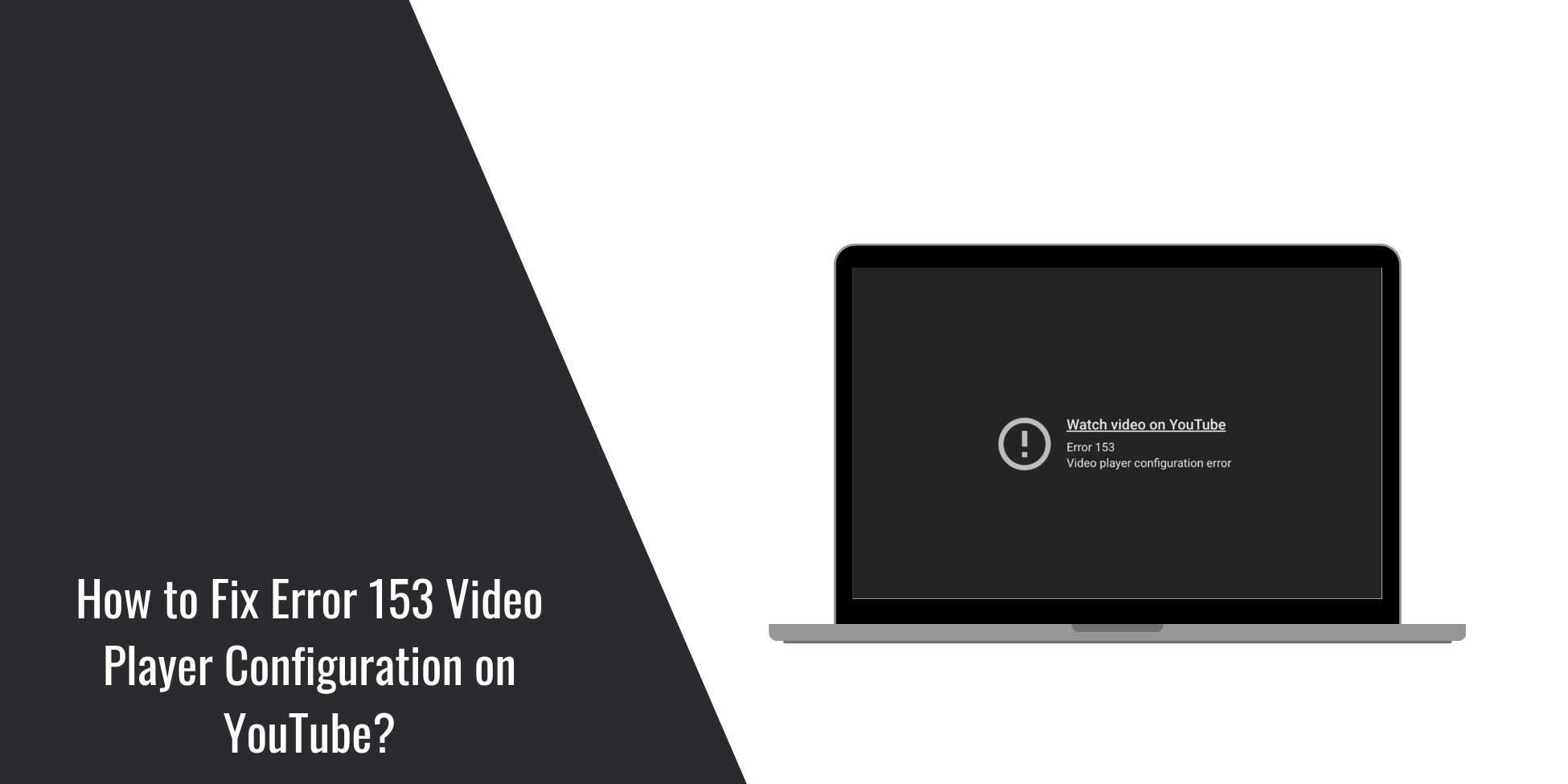
When Error 153 shows up, it stops your video and can break your focus fast. It happens on streaming sites, learning platforms, or even smart TVs when the video player fails to load its setup files. That can feel stressful, but you can fix it. This guide explains what the error means, where it appears, how to fix it, and how to keep it from popping up again.
What Is Error 153 VideoPlayer Configuration?
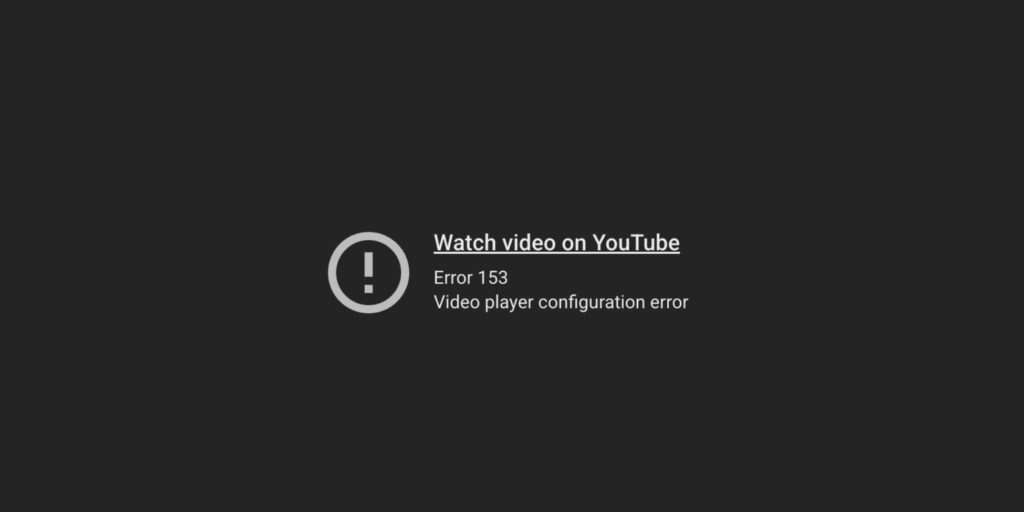
Error 153 is a video player configuration error. It appears when your player, such as an HTML5 video player, JW Player, Video.js, Brightcove Player, or a built-in streaming app, cannot load the data it needs. The player might struggle to read a manifest file like an M3U8 or MPD, reach a CDN server, or connect to a streaming API. When the player cannot read these settings, it stops playback and shows Error 153 instead.
You might see this error on a phone, laptop, desktop browser, smart TV, or even inside the YouTube iframe API when a script fails. It appears in places like the home screen of a streaming app, inside a web page video player, or on a learning dashboard where HLS or DASH streams load.
Common Causes of YouTube Error 153
This error can happen for several reasons, depending on your device or settings. Below are the most common causes you should know.
- A corrupted browser cache or damaged app data blocks the player from loading configuration files.
- Weak or unstable Wi Fi causes failed requests to the streaming server or CDN.
- VPN or proxy settings send traffic to blocked regions or slow routes.
- DNS server settings point to a slow or unreachable DNS resolver.
- JavaScript player configuration is broken due to missing scripts or outdated embeds.
- CDN assets get blocked because of location rules or content restrictions.
- Firewall, router, or parental control settings block video streaming ports.
How to Fix Error 153 Video Player Configuration on YouTube?
Error 153 can start from basic issues like a weak network or deeper problems tied to blocked CDN files or broken JavaScript player settings. Start with these simple fixes first, then work toward the advanced ones.
Fix 1: Refresh the Page or Restart the App
This error often appears when the video player loads outdated configuration data. A refresh clears the temporary state and forces the player to request fresh setup files from the CDN. This usually helps when the issue is tied to cached manifest files or half-loaded scripts.
Once you refresh or restart the app, the player loads new configuration data and restores playback more smoothly.
Fix 2: Clear Browser or App Cache
Error 153 can also show up when your browser or app cache is corrupted. Because the cache stores old JavaScript files, cookie data, and CDN assets, the player sometimes fails to load the correct version of the manifest file or streaming configuration. Clearing the cache removes the damaged files.
After this, the video player downloads clean files and loads the updated settings without conflict. You can perform the following steps to clear your cache:
- Open your browser or app settings.
- Go to Privacy or Storage.
- Tap Clear Cache.
- Restart the browser or app.
- Reload the video page.
- Test playback again.
Fix 3: Restart Your Router
Sometimes Error 153 appears because your router drops packets or gives your device an unstable path to the streaming server. A quick router restart rebuilds your network connection.
This helps the video player reach the CDN and load configuration files without interruption. Once the router restarts, your device reconnects with a cleaner signal, and video playback usually stabilizes.
Fix 4: Turn Off VPN or Proxy
A VPN or proxy can route your traffic into regions where the CDN blocks access to configuration files or manifest data. This often triggers Error 153 because the player cannot fetch required setup scripts. Turning off your VPN or proxy removes the blocked route.
Once you restore your normal connection, the video player reaches the correct server and loads the configuration properly.
Here’s how you can disable your VPN in just a few seconds:
- Open your device network settings.
- Tap VPN or Proxy.
- Turn off the active profile.
- Close your browser.
- Reopen the video page.
Fix 5: Reset DNS to Automatic
DNS settings affect how your device finds video servers, API endpoints, and streaming manifests like M3U8 or MPD. Incorrect DNS can slow or block these lookups, causing Error 153. Resetting DNS to automatic gives your device a faster and more stable search path.
Once DNS refreshes, the player reaches the streaming server properly and loads configuration files with fewer delays.
Below are the steps that will guide you to reset DNS:
- Open network settings.
- Select your Wi Fi or Ethernet connection.
- Tap DNS settings.
- Choose Automatic.
- Save your changes.
- Restart your device.
Fix 6: Disable Extensions That Block Scripts
Browser extensions like ad blockers or privacy shields sometimes block JavaScript player scripts, configuration JSON files, or media requests. This prevents the player from loading its setup data, which leads to Error 153. Disabling these tools lets the video scripts load normally.
After turning off the blockers, the video player builds the configuration again and playback usually works. Try these simple steps to quickly disable extensions:
- Open your browser menu.
- Go to Extensions.
- Turn off ad blockers or script blockers.
- Refresh the video page.
- Test playback.
Fix 7: Update Your Browser, App, or Device
Sometimes Error 153 appears because your software cannot handle newer streaming formats, updated codecs, or the latest security rules used by the CDN.
Updating your browser or device ensures you have the correct support for HLS, DASH, and HTML5 playback. After updating, your device loads modern streaming files more reliably and the error often stops.
Fix 8: Check Developer Console or Network Logs
This error might also come from deeper configuration issues such as missing manifest files, blocked CDN paths, or CORS failures. Checking the developer console helps reveal these problems. When you open the logs, you can see which files fail to load. This matters because Error 153 often triggers when a JavaScript player cannot fetch required configuration files.
Once you find the failing file or blocked request, developers can adjust server settings and fix the root cause.
Follow these easy instructions to open your console:
- Press F12 or open Developer Tools.
- Tap the Console tab.
- Reload the page.
- Look for red errors linked to streaming files.
- Check the Network tab to confirm failed requests.
Fix 9: Reinstall the Streaming App or Adjust Server Configuration
When the issue keeps coming back, the app itself might have corrupted files. Reinstalling the app replaces broken components and gives the video player fresh configuration settings. On the server side, developers might need to fix CORS rules, adjust CDN caching, repair manifest paths, or update the player embed code.
Once the app is clean or the server configuration is corrected, the video player loads its settings properly and Error 153 disappears for good.
Prevention Tips to Avoid Error 153 in Future
You can avoid Error 153 in the future by keeping your device healthy and your network stable. Try these easy tips.
- Update your apps, browser, and device often.
- Restart your router once a week.
- Avoid VPN use with region locked apps.
- Use trusted drivers and certified software.
- Clear your cache every few weeks.
- Replace old routers or slow Wi Fi hardware.
- Watch your device temperature and performance.
Conclusion
To summarize, Error 153 appears when the video player cannot load required settings. It usually happens because of network issues, blocked scripts, corrupted cache, or DNS problems. These causes often link to simple fixes.
Try the steps in this guide first. If the problem keeps coming back, reach out to the app support team or device maker for more help. They can check deeper issues related to firmware, CDN routing, or server side configuration.